View Editor v5.0
The View Editor is where you create and edit views — the display layer that shows your data to users. It's a professional-grade code editor built into the Control Panel, designed specifically for writing XMod Pro view definitions.
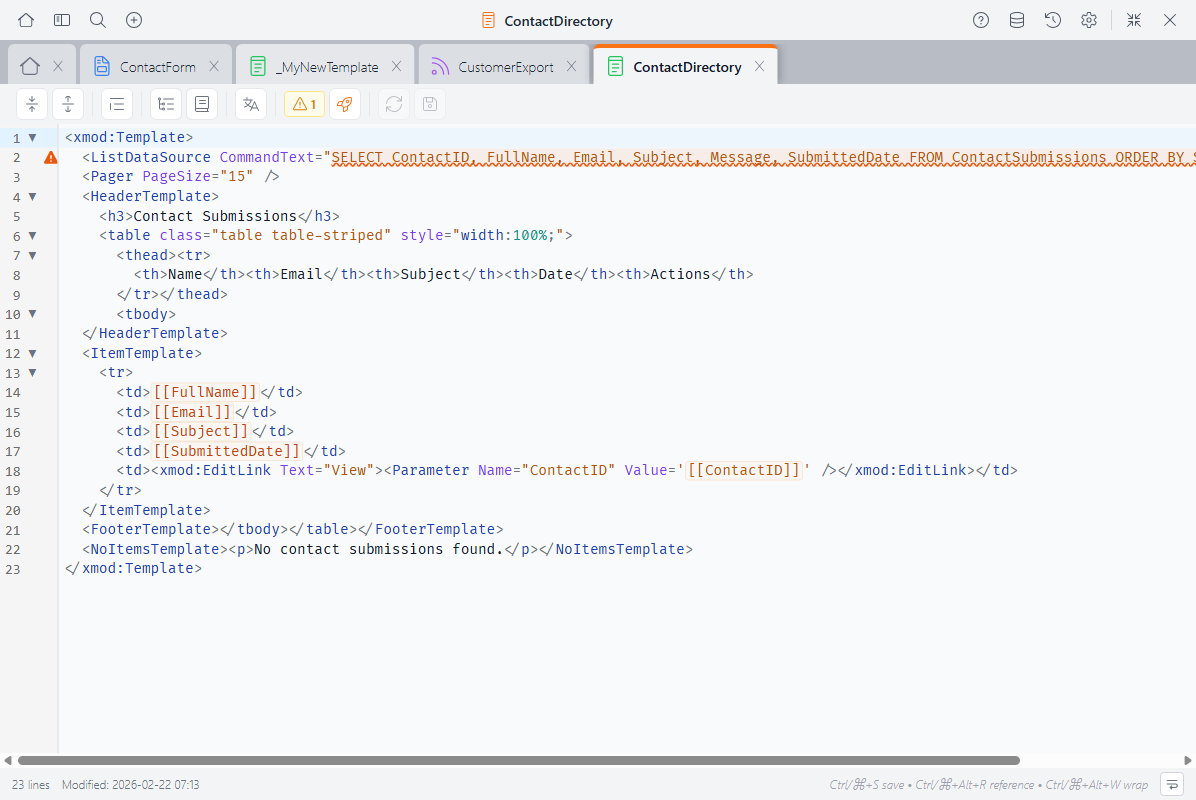
In the View Editor, you write <xmod:Template> definitions that include data sources, list and detail displays, and HTML layout — all with XMP-aware syntax highlighting, autocomplete, and real-time validation.
What You Write Here
A view definition is wrapped in an <xmod:Template> tag and typically contains:
<ListDataSource>— The SQL query that retrieves data for the list display<DetailDataSource>— The SQL query for the detail display (optional)<HeaderTemplate>/<FooterTemplate>— HTML that wraps the list<ItemTemplate>— The HTML rendered for each row of data<AlternatingItemTemplate>— Alternate styling for every other row (optional)<DetailTemplate>— The HTML for a single record's detail view (optional)<NoItemsTemplate>— What to show when there's no data
<xmod:Template>
  <ListDataSource CommandText="SELECT ContactId, FullName, Email
    FROM Contacts ORDER BY FullName" />

  <HeaderTemplate>
    <table class="table">
      <thead><tr><th>Name</th><th>Email</th></tr></thead>
      <tbody>
  </HeaderTemplate>

  <ItemTemplate>
    <tr>
      <td>[[FullName]]</td>
      <td>[[Email]]</td>
    </tr>
  </ItemTemplate>

  <FooterTemplate>
      </tbody>
    </table>
  </FooterTemplate>

  <NoItemsTemplate>
    <p>No contacts found.</p>
  </NoItemsTemplate>
</xmod:Template>The Toolbar
The toolbar runs along the top of the editor:

- Fold All / Unfold All — Collapse or expand all foldable sections
- Format Code — Clean up indentation (selected code, or all code if nothing is selected)
- Structure Navigator — Toggle a sidebar showing template areas and regions (details below)
- Reference Panel — Toggle a sidebar with tag and token reference (details below)
- Localization — Edit localization strings for this view
- Validation — Shows the count of errors and warnings (details below)
- Quick Start — Launch the View Quick Start wizard to generate a view from a data source
- Reload — Discard unsaved changes and reload from the server
- Save — Save your changes (Ctrl+S / Cmd+S)
The status bar at the bottom shows the line count, last modified date, keyboard shortcuts, and a word wrap toggle.
Quick Start
The Quick Start button is unique to the View Editor. It launches a wizard that generates a complete view definition from a database table — including data source, column layout, and pager. It's a fast way to scaffold a view that you can then customize.
Autocomplete
The editor understands the view context and offers suggestions as you type:
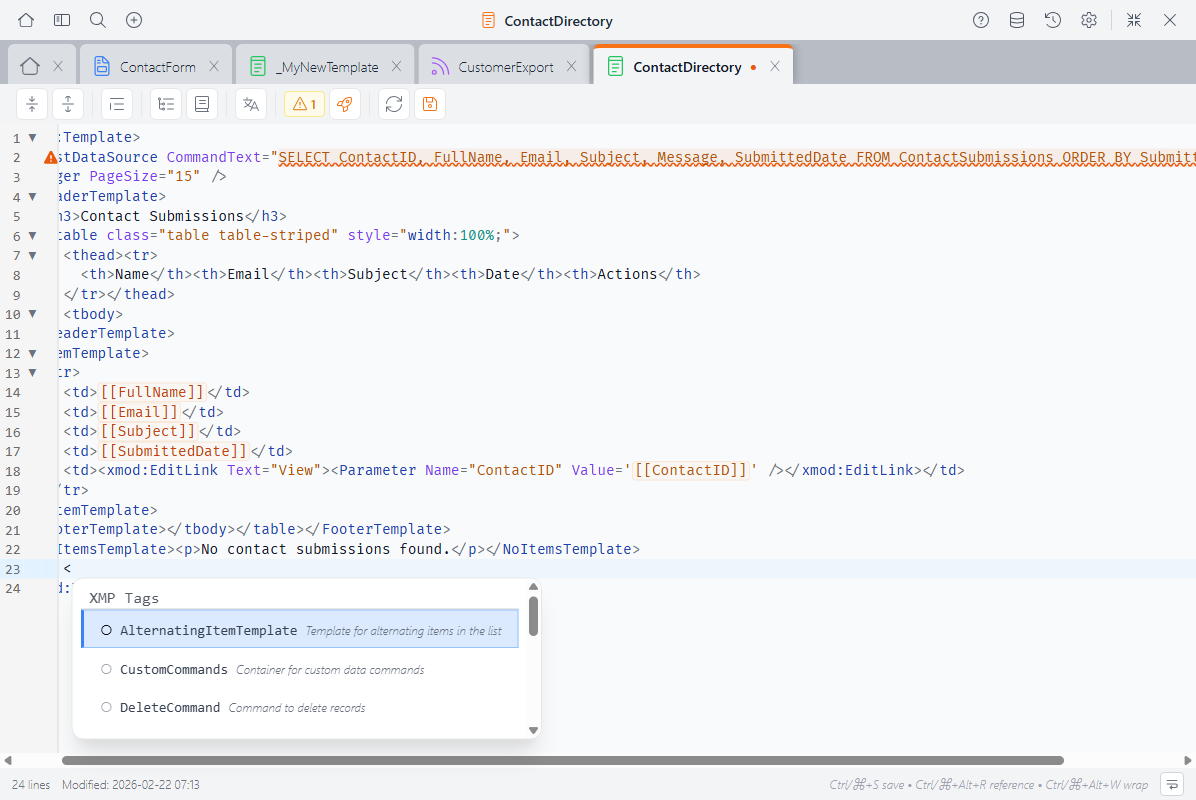
- Template tags —
<xmod:Template>,<HeaderTemplate>,<ItemTemplate>,<DetailTemplate>,<FooterTemplate>, and more - View controls —
<xmod:EditLink>,<xmod:DeleteButton>,<xmod:DetailLink>,<Pager>,<xmod:SearchSort>, and all other view controls - Data source tags —
<ListDataSource>,<DetailDataSource>,<Parameter>, and related tags - Tag attributes — Context-aware suggestions for the current tag's attributes
- Attribute values — Known values for attributes like
DataType,PageSize, etc. - Tokens —
[[FieldName]],[[User:...]],[[Portal:...]], and other token types - Database columns — Column names from your view's data source
- DNN roles — Portal role names for
ViewRolesand similar attributes - HTML elements — Standard HTML tags
- Snippets — Your saved code snippets, ready to insert
Autocomplete appears automatically as you type, or press Ctrl+Space to trigger it manually.
Validation
The editor validates your view structure in real time, catching problems before you save:
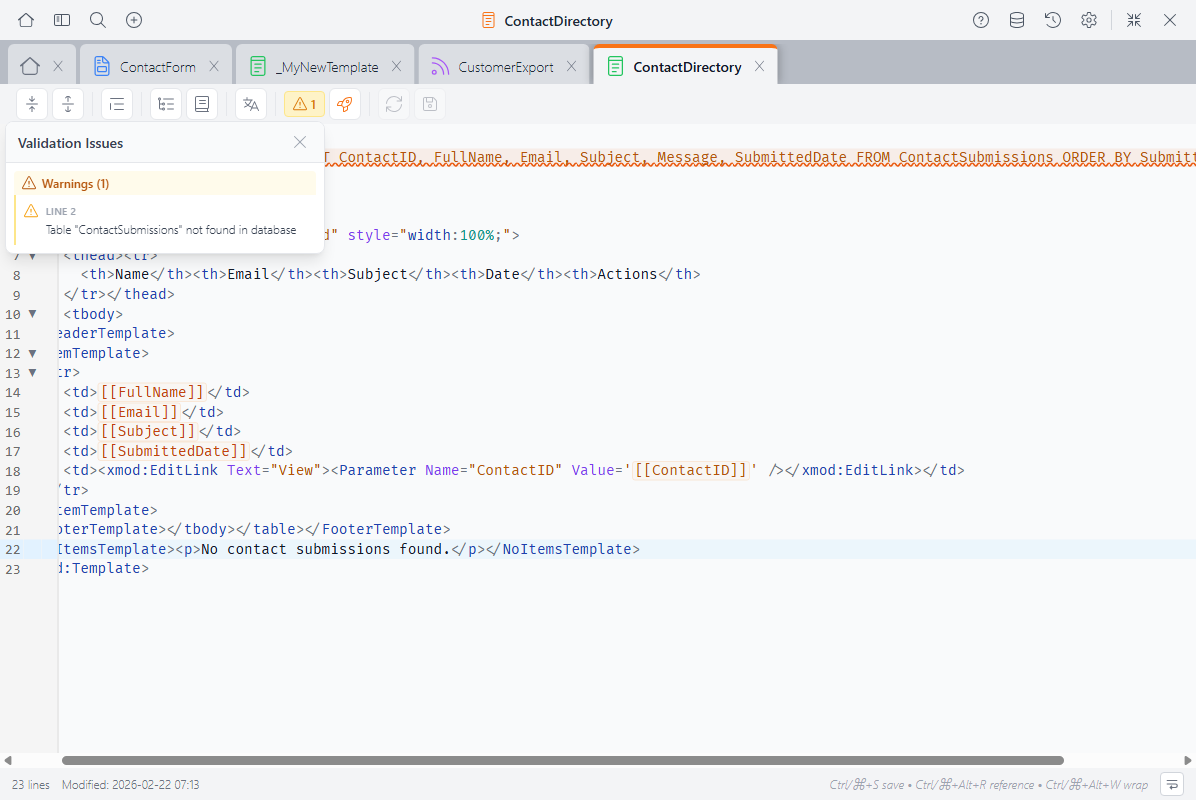
- Errors appear with red indicators in the gutter and wavy red underlines
- Warnings appear with orange indicators and orange underlines
- Info messages appear with blue indicators
The validation badge in the toolbar shows a count of current errors and warnings. Click it to open the validation panel, which lists all issues with line numbers — click any issue to jump to that line.
What Gets Validated
The editor runs two levels of checks. Structural checks run automatically as you type:
<DetailTemplate>without a<DetailDataSource>to supply data- Detail controls (
<xmod:DetailButton>, etc.) without a<DetailTemplate>to display - Delete controls (
<xmod:DeleteButton>, etc.) without a<DeleteCommand>to execute <CommandButton>/<CommandImage>/<CommandLink>whoseCommandNamedoesn't match any<DataCommand><ItemTemplate>content without a<ListDataSource>to supply data<Pager>without a<ListDataSource>
Database checks run when you click the validation button and verify your SQL against the actual database:
- Tables or stored procedures referenced in your SQL that don't exist
[[FieldName]]tokens that don't match columns in the data source- Tokens in custom
<DataCommand>elements that reference unavailable fields
Validation is advisory — it highlights issues but never blocks saving.
Shared Editor Features
The View Editor shares these features with the Custom Form Editor and Feed Editor:
Syntax Highlighting
- XMP tokens like
[[FieldName]]and[[User:ID]]are highlighted in orange - XMP tags like
<xmod:Template>and<xmod:EditLink>are highlighted - Comments using
[-- ... --]syntax are dimmed - HTML tags, attributes, and strings each get their own colors
- Regions (
#region/#endregion) are visually marked
The editor supports light and dark themes — switch between them in Settings.
Code Folding
Collapse sections to focus on what you're working on. Click the fold indicator in the gutter, or use Fold All / Unfold All in the toolbar.
Foldable sections include template areas (<HeaderTemplate>, <ItemTemplate>, etc.), #region / #endregion blocks, and any multi-line XML/HTML tags.
Using Regions
Wrap sections in #region Section Name and #endregion to create named, collapsible sections — especially useful in long view definitions:
#region List View Header
<div class="header">
  <h2>My Items</h2>
</div>
#endregionStructure Navigator
Click Structure Navigator in the toolbar to see an outline of your view: template areas like <HeaderTemplate>, <ItemTemplate>, and <DetailTemplate>, plus any regions. Click an item to jump directly to it.
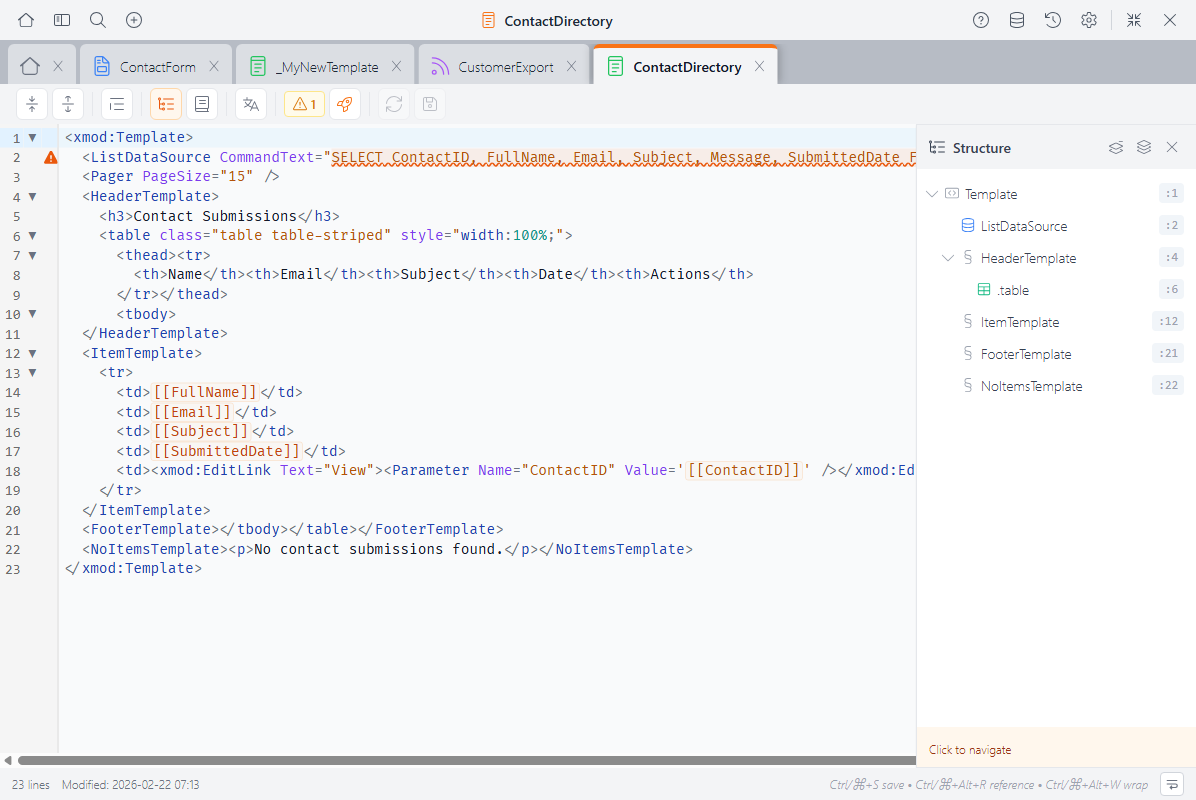
This is especially useful in views with multiple template areas and regions.
Reference Panel
Click Reference Panel (or press Ctrl+Alt+R / Cmd+Alt+R) to open a searchable sidebar with:
- View tags & attributes — Every available view tag and its properties
- Tokens — All token types and their syntax
- Snippets — Your saved snippets, ready to insert with a click
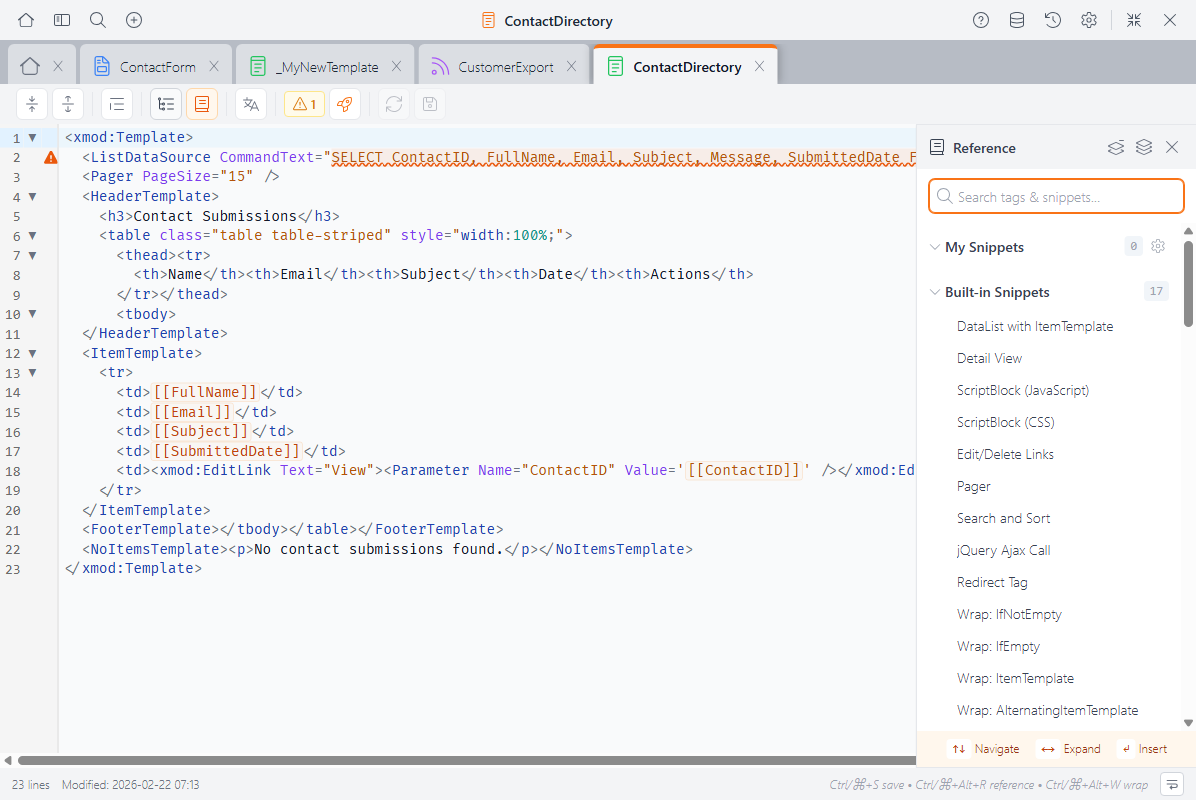
The panel automatically shows view-context content when you're editing a view.
Keyboard Shortcuts
| Shortcut | Action |
|---|---|
| Ctrl+S / Cmd+S | Save |
| Ctrl+Z / Cmd+Z | Undo |
| Ctrl+Shift+Z / Cmd+Shift+Z | Redo |
| Ctrl+F / Cmd+F | Find |
| Ctrl+Space | Trigger autocomplete |
| Ctrl+Alt+W / Cmd+Alt+W | Wrap selection with a tag |
| Ctrl+Alt+R / Cmd+Alt+R | Toggle Reference Panel |
| Tab / Shift+Tab | Indent / outdent selected lines |
Next Steps
- View Controls Reference — Detailed docs for every view control
- Tutorials — Step-by-step guides starting with a simple list view
- Snippets — Create reusable code snippets
- Version History — Browse, compare, and restore previous versions