Feed Editor v5.0
The Feed Editor is where you create and edit feeds — resources that return data in formats like JSON, RSS, CSV, or HTML. It's a professional-grade code editor built into the Control Panel, designed specifically for writing XMod Pro feed definitions.
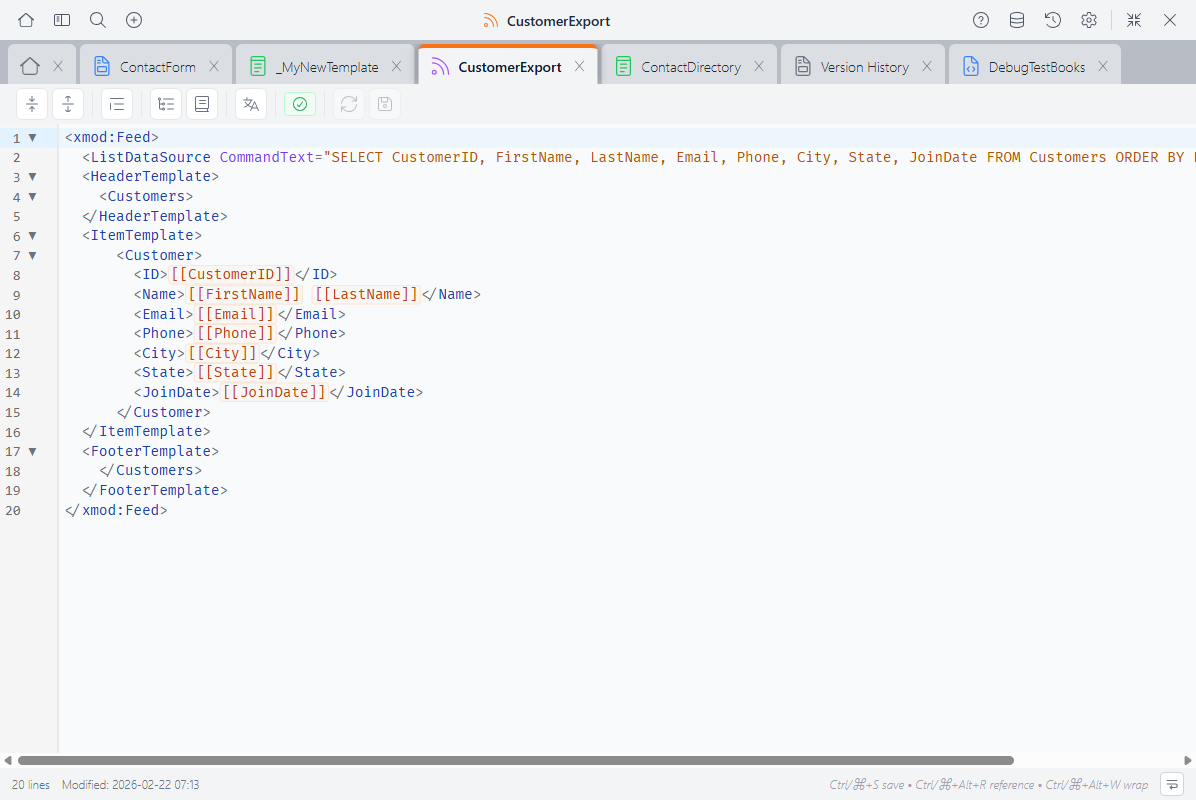
In the Feed Editor, you write <xmod:Feed> or <xmod:JsonFeed> definitions that include data sources and output templates — all with XMP-aware syntax highlighting, autocomplete, and real-time validation.
What You Write Here
A feed definition uses one of two root tags:
<xmod:Feed>— A general-purpose feed where you define the output format with templates (RSS, CSV, HTML, XML, etc.)<xmod:JsonFeed>— A specialized tag that automatically outputs JSON, with no template markup needed
xmod:Feed Example
<xmod:Feed>
  <ListDataSource CommandText="SELECT CustomerID, FirstName, LastName,
    Email, Phone FROM Customers ORDER BY LastName" />

  <HeaderTemplate>
    <Customers>
  </HeaderTemplate>

  <ItemTemplate>
    <Customer>
      <ID>[[CustomerID]]</ID>
      <Name>[[FirstName]] [[LastName]]</Name>
      <Email>[[Email]]</Email>
      <Phone>[[Phone]]</Phone>
    </Customer>
  </ItemTemplate>

  <FooterTemplate>
    </Customers>
  </FooterTemplate>
</xmod:Feed>xmod:JsonFeed Example
<xmod:JsonFeed>
  <ListDataSource CommandText="SELECT ProductID, ProductName, Price
    FROM Products ORDER BY ProductName" />
</xmod:JsonFeed>With <xmod:JsonFeed>, the output is generated automatically from the query results — no templates needed.
The Toolbar
The toolbar runs along the top of the editor:
- Fold All / Unfold All — Collapse or expand all foldable sections
- Format Code — Clean up indentation (selected code, or all code if nothing is selected)
- Structure Navigator — Toggle a sidebar showing the feed structure and regions (details below)
- Reference Panel — Toggle a sidebar with tag and token reference (details below)
- Localization — Edit localization strings for this feed
- Validation — Shows the count of errors and warnings (details below)
- Reload — Discard unsaved changes and reload from the server
- Save — Save your changes (Ctrl+S / Cmd+S)
The status bar at the bottom shows the line count, last modified date, keyboard shortcuts, and a word wrap toggle.
Autocomplete
The editor understands the feed context and offers suggestions as you type:
- Feed tags —
<xmod:Feed>,<xmod:JsonFeed>,<HeaderTemplate>,<ItemTemplate>,<FooterTemplate>, and more - Data source tags —
<ListDataSource>,<Parameter>, and related tags - Tag attributes — Context-aware suggestions including
ContentType,ViewRoles,Encoding, etc. - Attribute values — Known values for feed-specific attributes
- Tokens —
[[FieldName]],[[User:...]],[[Portal:...]], and other token types - Database columns — Column names from your feed's data source
- DNN roles — Portal role names for
ViewRoles - HTML/XML elements — Standard HTML and XML tags for your output format
- Snippets — Your saved code snippets, ready to insert
Autocomplete appears automatically as you type, or press Ctrl+Space to trigger it manually.
Validation
The editor validates your feed structure in real time, catching problems before you save:
- Errors appear with red indicators in the gutter and wavy red underlines
- Warnings appear with orange indicators and orange underlines
- Info messages appear with blue indicators
The validation badge in the toolbar shows a count of current errors and warnings. Click it to open the validation panel, which lists all issues with line numbers — click any issue to jump to that line.
When your feed is structurally valid, you'll see a green checkmark in the validation badge.
What Gets Validated
The editor runs two levels of checks. Structural checks run automatically as you type:
- Missing
<ListDataSource>— a feed without a data source will have no data to output
Database checks run when you click the validation button and verify your SQL against the actual database:
- Tables or stored procedures referenced in your SQL that don't exist
[[FieldName]]tokens that don't match columns in the<ListDataSource>
Validation is advisory — it highlights issues but never blocks saving.
Shared Editor Features
The Feed Editor shares these features with the Custom Form Editor and View Editor:
Syntax Highlighting
- XMP tokens like
[[FieldName]]and[[User:ID]]are highlighted in orange - XMP tags like
<xmod:Feed>and<xmod:JsonFeed>are highlighted - Comments using
[-- ... --]syntax are dimmed - HTML/XML tags, attributes, and strings each get their own colors
- Regions (
#region/#endregion) are visually marked
The editor supports light and dark themes — switch between them in Settings.
Code Folding
Collapse sections to focus on what you're working on. Click the fold indicator in the gutter, or use Fold All / Unfold All in the toolbar.
Foldable sections include template areas (<HeaderTemplate>, <ItemTemplate>, etc.), #region / #endregion blocks, and any multi-line XML/HTML tags.
Structure Navigator
Click Structure Navigator in the toolbar to see an outline of your feed: the feed root tag, template areas, and any regions. Click an item to jump directly to it.
Reference Panel
Click Reference Panel (or press Ctrl+Alt+R / Cmd+Alt+R) to open a searchable sidebar with:
- Feed tags & attributes — Every available feed tag and its properties
- Tokens — All token types and their syntax
- Snippets — Your saved snippets, ready to insert with a click
The panel automatically shows feed-context content when you're editing a feed.
Keyboard Shortcuts
| Shortcut | Action |
|---|---|
| Ctrl+S / Cmd+S | Save |
| Ctrl+Z / Cmd+Z | Undo |
| Ctrl+Shift+Z / Cmd+Shift+Z | Redo |
| Ctrl+F / Cmd+F | Find |
| Ctrl+Space | Trigger autocomplete |
| Ctrl+Alt+W / Cmd+Alt+W | Wrap selection with a tag |
| Ctrl+Alt+R / Cmd+Alt+R | Toggle Reference Panel |
| Tab / Shift+Tab | Indent / outdent selected lines |
Next Steps
- Feeds Concept Guide — Learn about feeds and when to use them
- Feed Tag Reference —
<xmod:Feed>tag documentation - JSON Feed Tag Reference —
<xmod:JsonFeed>tag documentation - Snippets — Create reusable code snippets
- Version History — Browse, compare, and restore previous versions