Explorer: Views Tab v5.0
The Views tab in the Explorer lists all your view definitions. Click any view's name to open it in the View Editor.
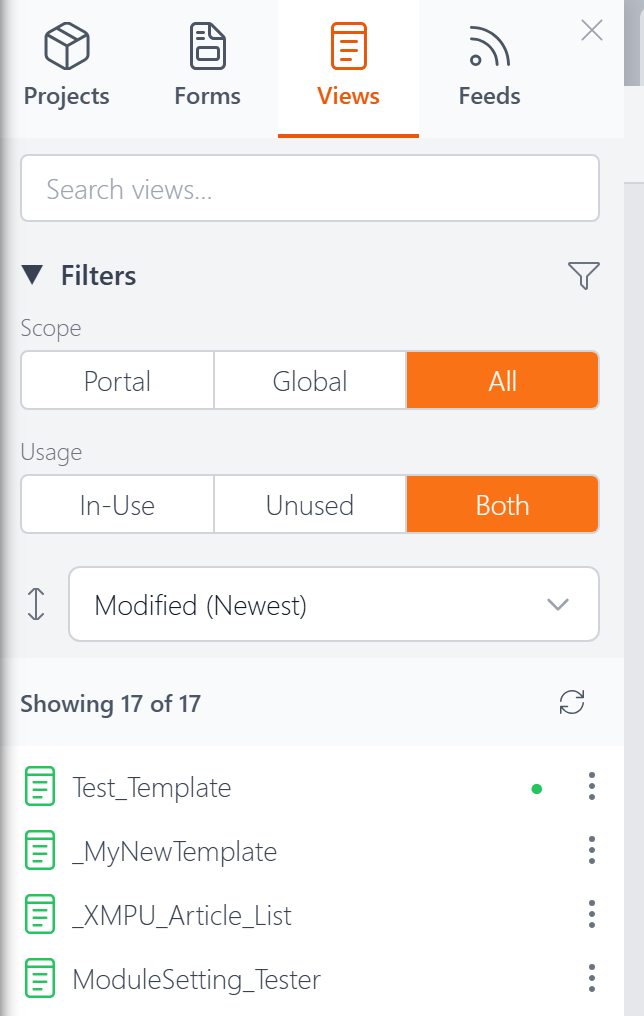
Search
Type in the search box to instantly filter the list by name. The count below updates to show how many views match (e.g., "Showing 5 of 17").
Filters
The Views tab has two filter groups, each with toggle buttons:
Scope — Filter by where the view is stored:
- Portal — Views belonging to the current DNN portal
- Global — Views shared across all portals
- All — Show all
Usage — Filter by whether the view is assigned to a module on a page:
- In-Use — Views currently assigned to a module
- Unused — Views not assigned to any module
- Both — Show all
You can collapse the Filters section by clicking its heading.
Sorting
A dropdown below the filters lets you sort the list:
- Name (A–Z) — Alphabetical order (default)
- Modified (Newest) — Most recently edited first
- Created (Newest) — Most recently created first
In-Use Indicator
Views that are currently assigned to a module on a page show a small green dot next to their name.
Actions Menu
Click the three-dot menu (⋮) on any view to see the available actions:
- Open — Open the view in the Code Editor
- Pin / Unpin — Pin the view to the top of the list for quick access. Pins persist across sessions.
- Rename — Change the view's name. If the view is in use, XMod Pro shows you where it's referenced so you're aware of the impact.
- Duplicate — Create a copy of the view with a new name
- Add to Project — Add the view to one or more projects
- View Usage — See which modules and pages reference this view. You can click through to open any listed page directly.
- Delete — Permanently remove the view. If the view is assigned to a module, XMod Pro blocks the deletion and tells you where it's in use.
Next Steps
- The Explorer — Overview of the Explorer panel
- Views — What views are and how they work
- View Editor — Create and edit views with code