Activating Your License
To use XMod Pro on a live site, you need to activate your license. You can use XMod Pro without activation only on localhost for local development.
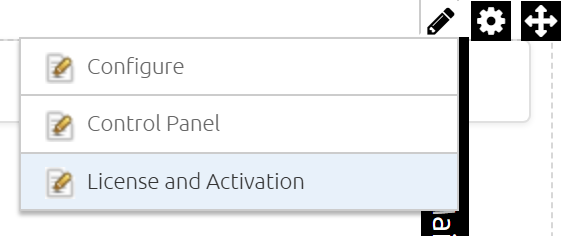
The License and Activation page is available to Host (SuperUser) accounts only. To get there, hover over the XMod Pro module and select License and Activation from the actions menu:
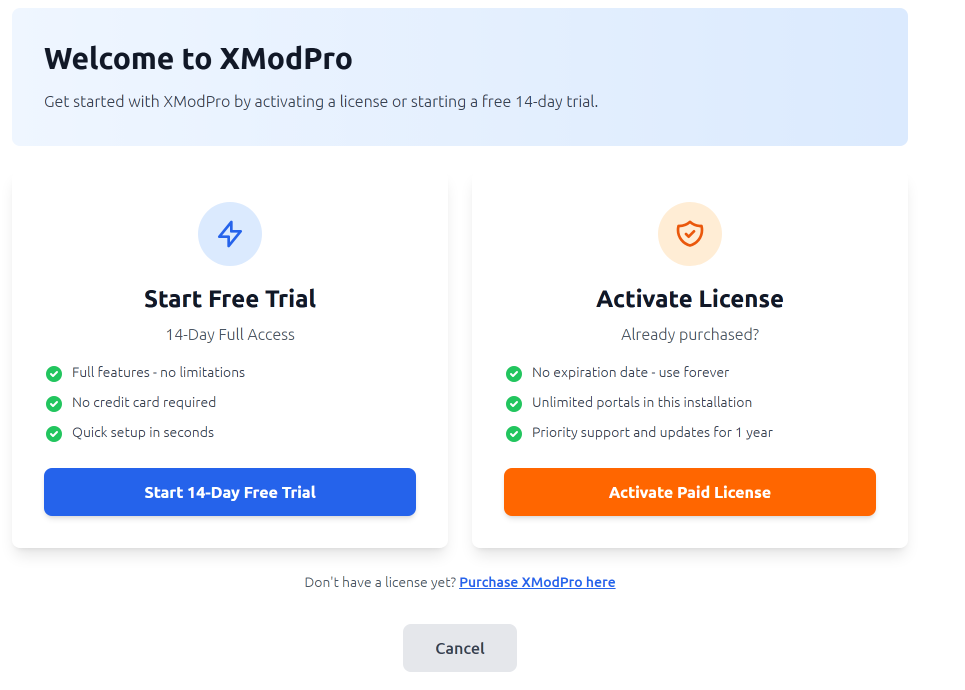
When you open the page for the first time, you'll see two options: start a free trial or activate a paid license.
Requesting a Trial License
If you'd like to try XMod Pro before purchasing, you can activate a 14-day trial license with a single click. Click the Start 14-Day Free Trial button — no email address or other information is required. The trial gives you full access to all features with no limitations.
Once activated, the page shows your trial details including the expiration date, days remaining, and maximum portals.
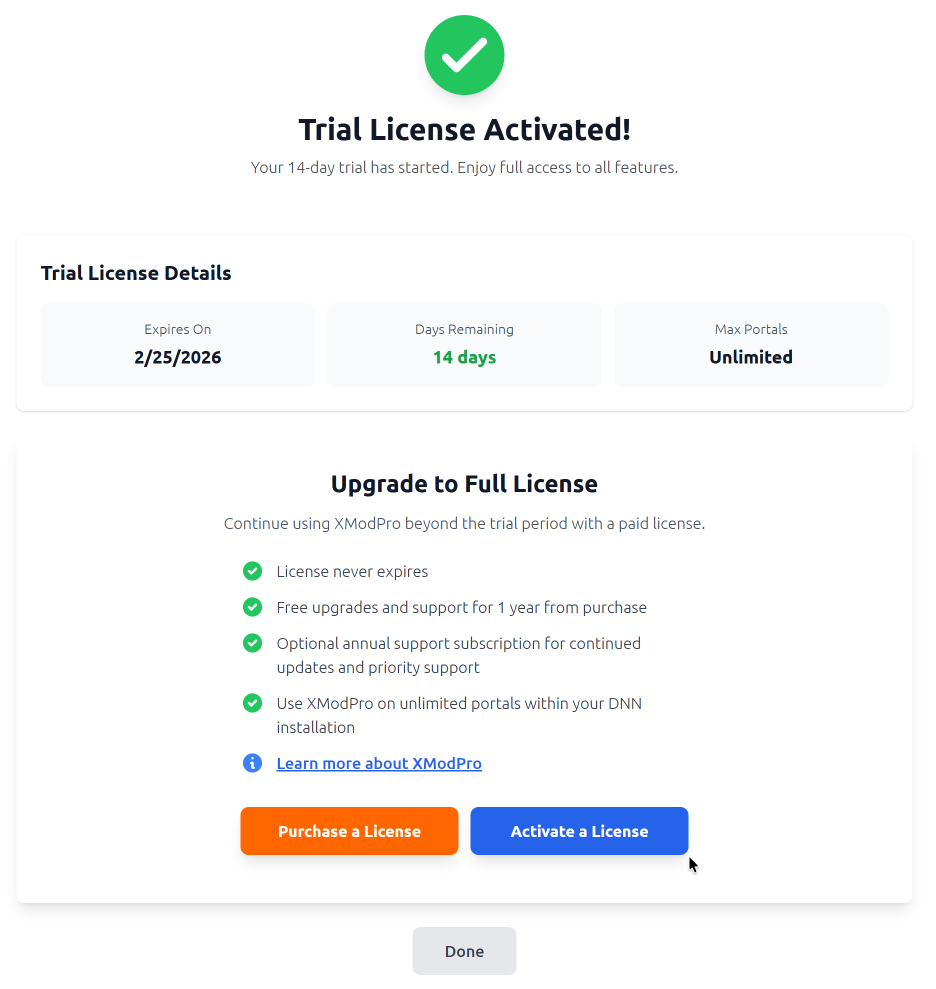
When you're ready to upgrade, click Activate a License to begin the paid activation process, or click Purchase a License if you haven't bought one yet.
Activating a Paid License
To activate a purchased license:
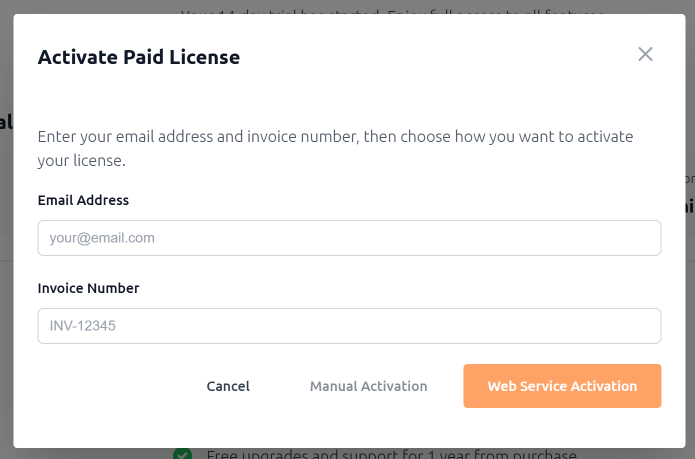
- On the License and Activation page, click Activate Paid License (or Activate a License if you're on a trial).
- In the dialog that appears, enter the email address you used when purchasing the license.
- Enter your invoice number from your purchase receipt.
- Click Web Service Activation.
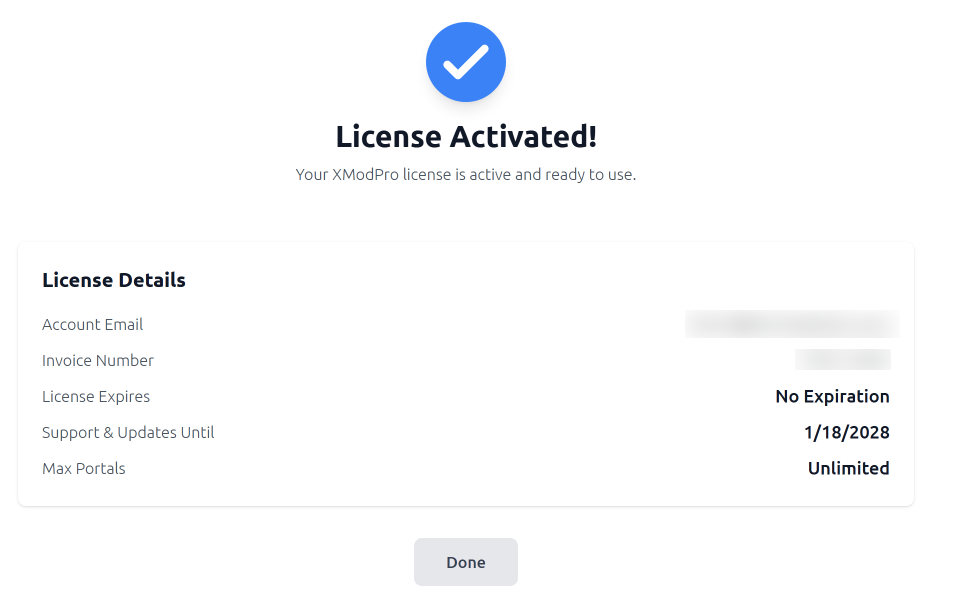
Your server needs an internet connection to complete the activation. Once activated, the page displays your license details including the account email, invoice number, license expiration, support and updates period, and portal allowance.
Manual Activation
If your server doesn't have a direct internet connection or you're having trouble with web service activation, you can activate manually:
- In the activation dialog, enter your email address and invoice number.
- Click the Manual Activation button (instead of Web Service Activation).
- The dialog walks you through three steps:
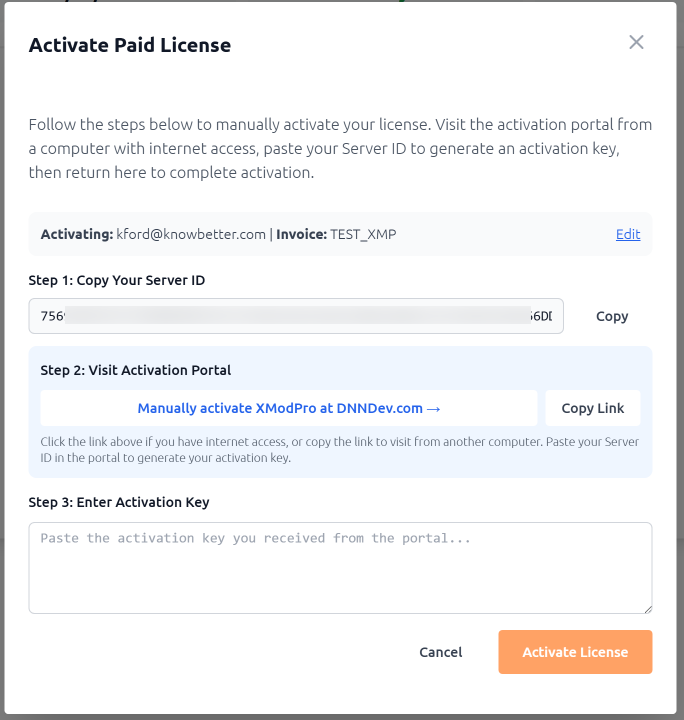
- Step 1: Copy Your Server ID — Click Copy to copy the Server ID to your clipboard.
- Step 2: Visit Activation Portal — Click the link to open the activation portal at DNNDev.com (or click Copy Link to visit from a computer with internet access). On the portal page, select DNNDev as the manufacturer and XModPro as the product. Paste your Server ID and click Generate Activation Key. Copy the resulting key.
- Step 3: Enter Activation Key — Paste the activation key you received from the portal into the text box.
- Click Activate License to complete the activation.