Configuring XMod Pro
The Configure page is where you assign views and forms to an XMod Pro module instance and control how it behaves. It's available to portal administrators as well as Host (SuperUser) accounts — though some sections are only visible to Hosts.
Most of the settings that define how your XMod Pro solution works live inside the views and forms themselves. The Configure page determines which view and form the module uses, along with security, search integration, and a few other options.
Opening the Configure Page
There are two ways to open the Configure page:
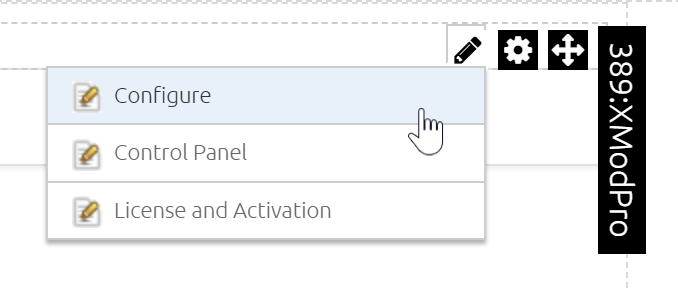
From the module actions menu — Click the module's action menu (pencil icon) and select Configure.
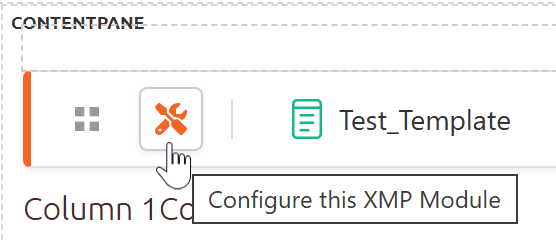
From the quick-edit toolbar — When the module is in Edit Mode, click the wrench icon in the toolbar that appears above the module.
TIP
You must be in Edit Mode to see the quick-edit toolbar. Toggle Edit Mode using the pencil icon in the DNN Persona Bar.
The Configure page has four tabs: Settings, DNN Search Integration (Host only), Security, and About.
Settings Tab
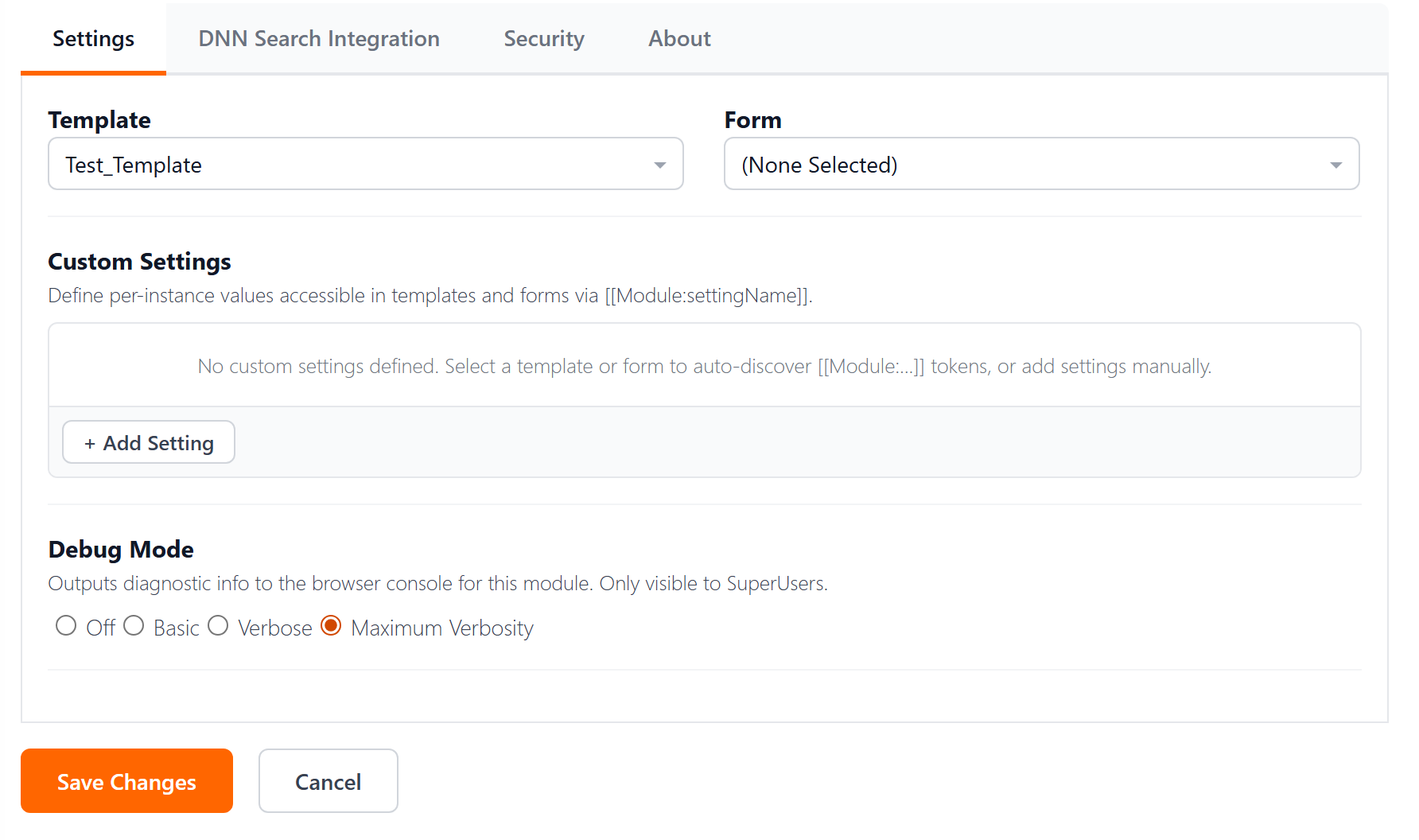
On the Settings tab you choose which view and form this module will display. You can assign just a view, just a form, or both. If you assign only a form, visitors will see the form as soon as they navigate to the page — perfect for "Contact Us" or feedback scenarios.
The View and Form dropdowns are searchable — just start typing to filter. Each dropdown combines both portal-level and global items into a single list, grouped under Portal and Global headings. (Portal items belong to the current portal only, while Global items are shared across all portals in the DNN installation.)
Custom Settings Host Only
Custom Settings let you define per-instance values that your views and forms can reference using [[Module:settingName]] tokens. For example, if you create a setting named DepartmentTitle with a value of Marketing, then placing [[Module:DepartmentTitle]] in your view or form will output Marketing at runtime.
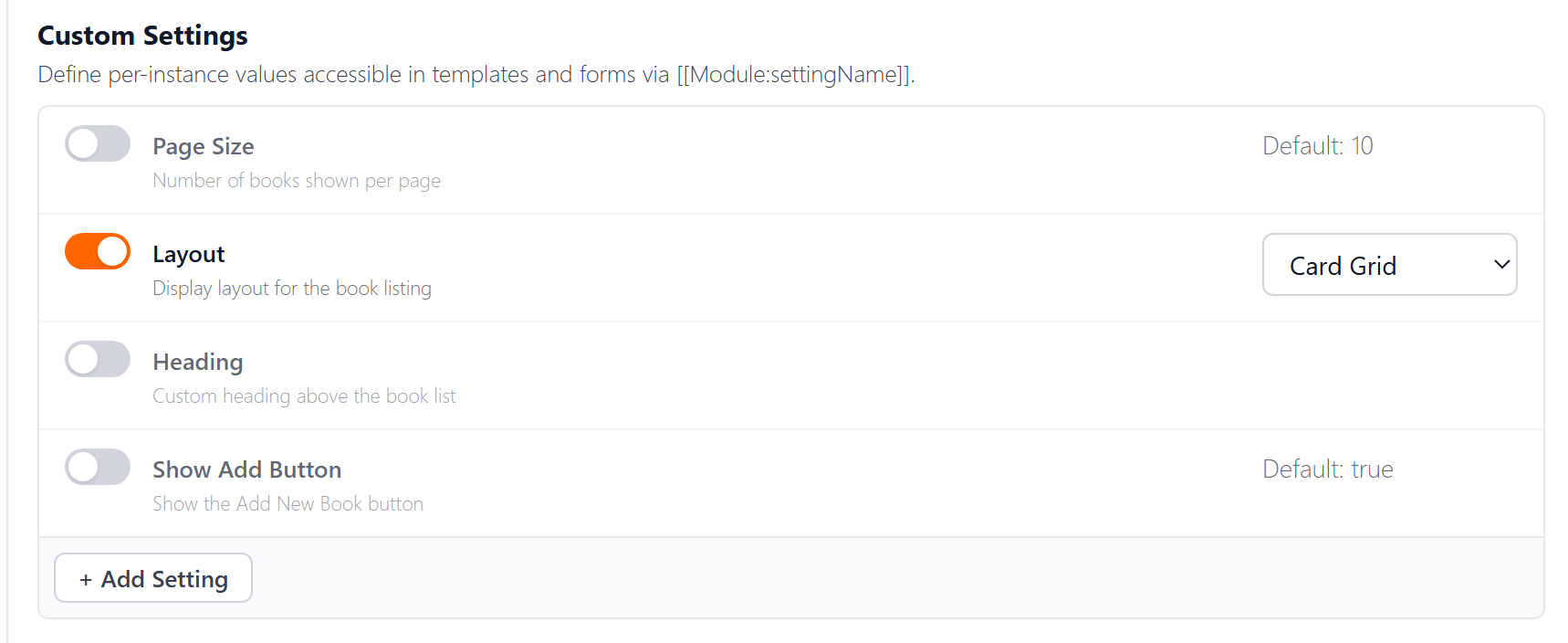
Schema-driven — In v5, view and form authors declare which settings their file expects using a #settings directive at the top of the file. The Configure page reads that declaration and presents one row per setting, with a label, optional help text, a toggle, and an input control matched to the setting's data type.
Authors declare settings as a JSON object inside an XMP comment:
[-- #settings
{
  "settings": [
    { "Name": "PageSize", "DefaultValue": 10, "Max": 100 },
    { "Name": "Layout", "Items": ["list", "card", "table"] },
    { "Name": "Heading" },
    { "Name": "ShowAddButton", "DefaultValue": true }
  ]
}
--]See the Module Settings Schema reference for the full property list, validation rules, and more examples.
XMod Pro infers a sensible label, data type, and input control for each entry — so { "Name": "PageSize" } is a complete declaration. The defaults work like this:
- Label — auto-generated from the
Nameby splitting at PascalCase boundaries (PageSize→ "Page Size",ShowAddButton→ "Show Add Button"). Override with an explicitLabelproperty. - Data type — inferred from other properties:
Itemspresent →choice(dropdown);DefaultValueistrue/false→boolean(checkbox);DefaultValueis numeric orMin/Maxis set →integer(number input); otherwise →text(text input). - DefaultValue — shown as informational text on the row when the toggle is off; pre-fills the input the first time the toggle is flipped on.
Toggle behavior — Each row has a toggle switch. When off, no value is saved for that module instance and the [[Module:settingName]] token resolves empty (or to whatever your view/form treats as the default). When on, the input becomes editable and the value is persisted on save. Settings declared with "Required": true are forced on and can't be turned off; if the user clears the value, the save is blocked with an inline message.
When you assign both a view and a form, XMod Pro merges the two #settings declarations into one list. If both files declare the same Name, the view's definition wins and a warning is shown.
Other Settings — values that were saved previously but no longer match any declaration in the currently assigned view or form (for example, after switching to a different view) appear in an Other Settings section below the schema-driven list. You can keep or remove each one. The + Add Setting button is also still available for one-off values that aren't declared anywhere.
Debug Mode Host Only
Debug Mode outputs diagnostic information to the browser console for this module instance. It's only visible to Host users in the browser — regular visitors never see it.
| Level | Description |
|---|---|
| Off | No debug output (default) |
| Basic | Key events and data source execution |
| Verbose | Detailed processing information |
| Maximum Verbosity | Full diagnostic output |
DNN Search Integration Tab Host Only
XMod Pro can have your data indexed by DNN's search engine, making it possible to include your data in site-wide searches.
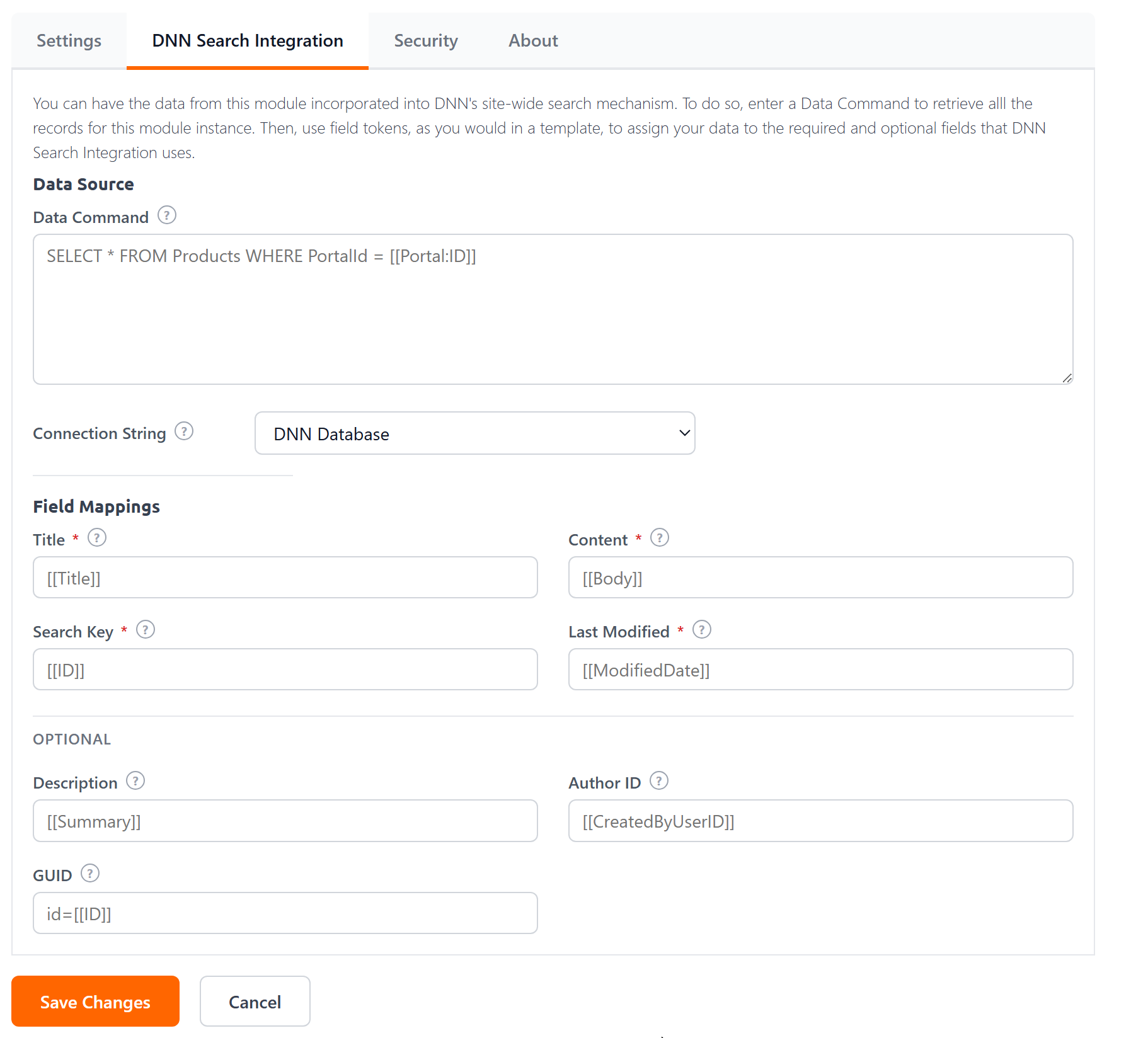
Data Source
- Data Command — Enter a SQL command to retrieve all records that should be indexed for this module instance. You can use tokens like
[[Portal:ID]]and[[Module:ID]], but not user- or session-specific tokens ([[User:ID]],[[Url:paramName]],[[Form:paramName]]) since DNN runs this command in the background without an active user session.
TIP
Embed tokens directly in the SQL command — they'll be replaced at runtime. Field tokens are not allowed in the Data Command itself; they're used in the field mappings below.
- Connection String — Defaults to the DNN database. To use a different database, add a connection string to your site's
web.configfile (in the<connectionStrings>section) and select it from the dropdown.
Field Mappings
Use field tokens (like [[Title]] or [[ProductId]]) to map your data to the fields that DNN's search engine expects. Required fields are marked with an asterisk.
Required:
| Field | Description | Max Length |
|---|---|---|
| Title | The record title shown on the search results page. Supports field tokens and plain text. | 200 chars |
| Content | The text that DNN will index for searching. Supports field tokens and plain text. | — |
| Search Key | A value that uniquely identifies the record (typically its ID). | 100 chars |
| Last Modified | A valid date/time value indicating when the record was last updated. DNN uses this to decide whether to re-index the record. If this value doesn't change when a record is updated, the record won't be re-indexed. | — |
Optional:
| Field | Description | Max Length |
|---|---|---|
| Description | A description shown on the search results page. Supports field tokens and plain text. | 2,000 chars |
| Author ID | The DNN User ID of the record's author. Leave blank if not applicable. | — |
| GUID | URL parameters appended to the search result link, pointing to the record's detail view. For example: bookid=[[BookId]] or bookid=[[BookId]]&authorid=[[AuthorId]]. Make sure your view has a detail area with matching parameters. | — |
INFO
All maximum lengths refer to the rendered length — after field tokens have been replaced with actual values.
Security Tab
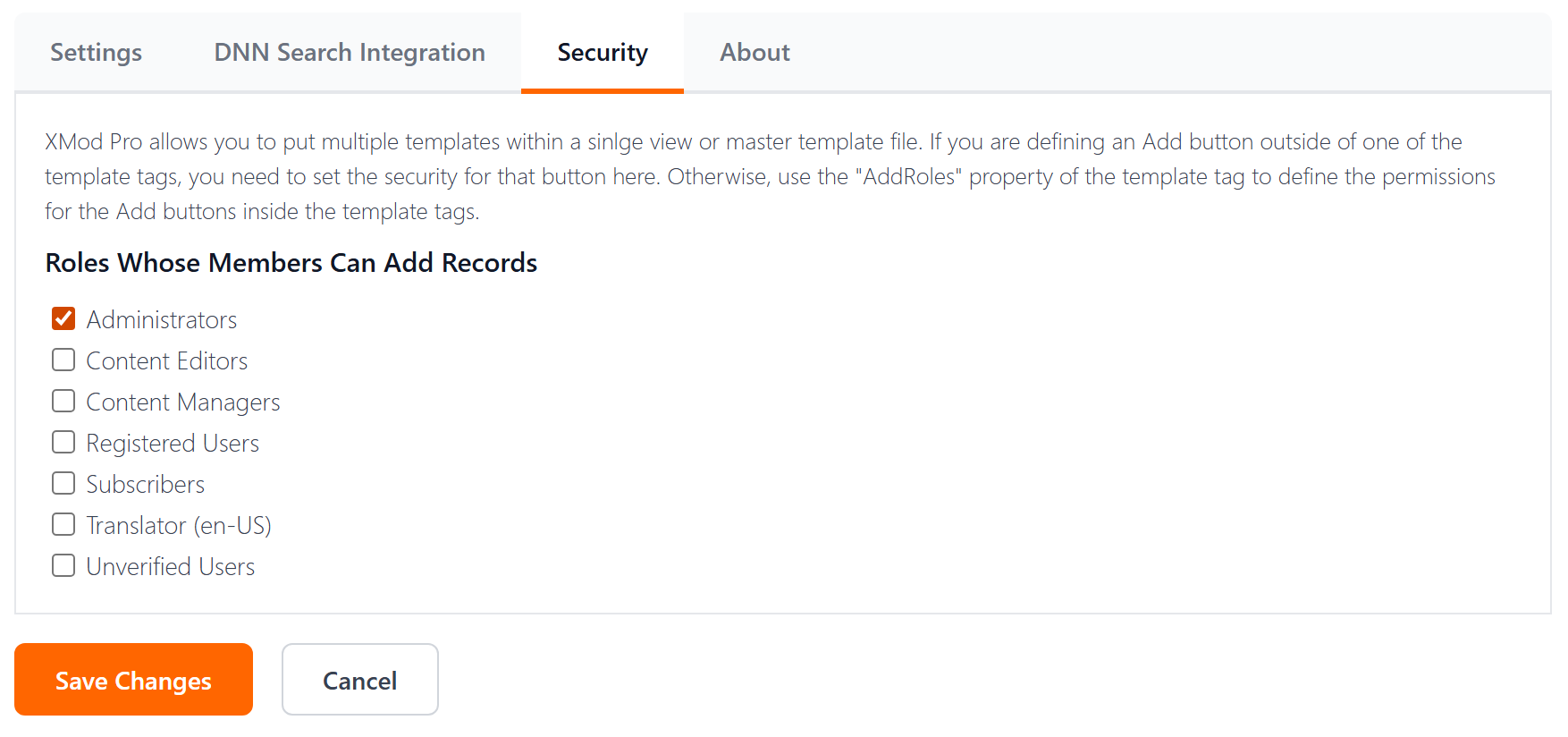
On the Security tab you choose which DNN roles have permission to add records through this module. Check the box next to each role whose members should be allowed to add data. The Administrator role is always included.
Edit, delete, and detail view permissions are controlled within the view itself, not on this page.
About Tab
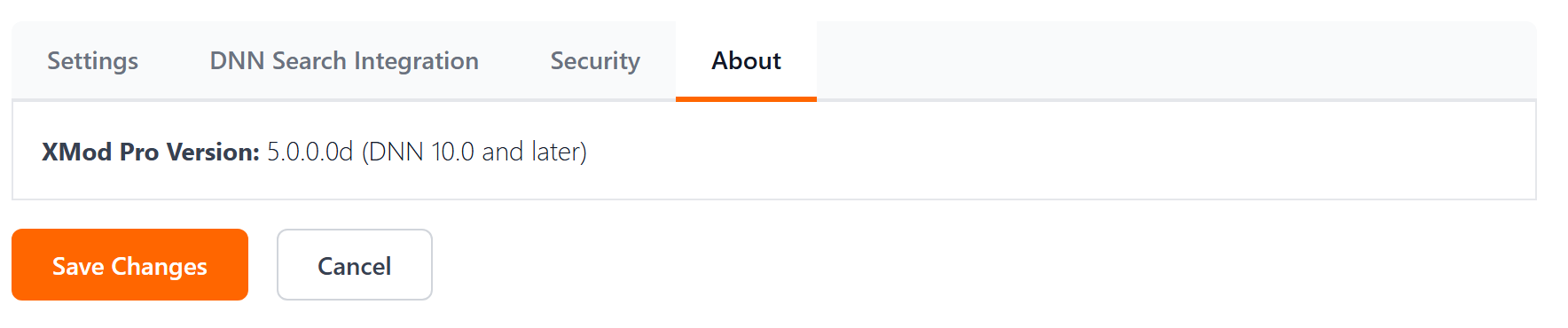
The About tab displays the XMod Pro version number and the DNN version it was built for. When reporting issues, you may be asked for this version to help identify which release you're running.