Control Panel v5.0
The Control Panel is the central workspace for everything you build with XMod Pro. From here you can create and edit forms, views, and feeds, manage database tables, organize resources into projects, and access every tool XMod Pro offers — all in a single, modern interface.
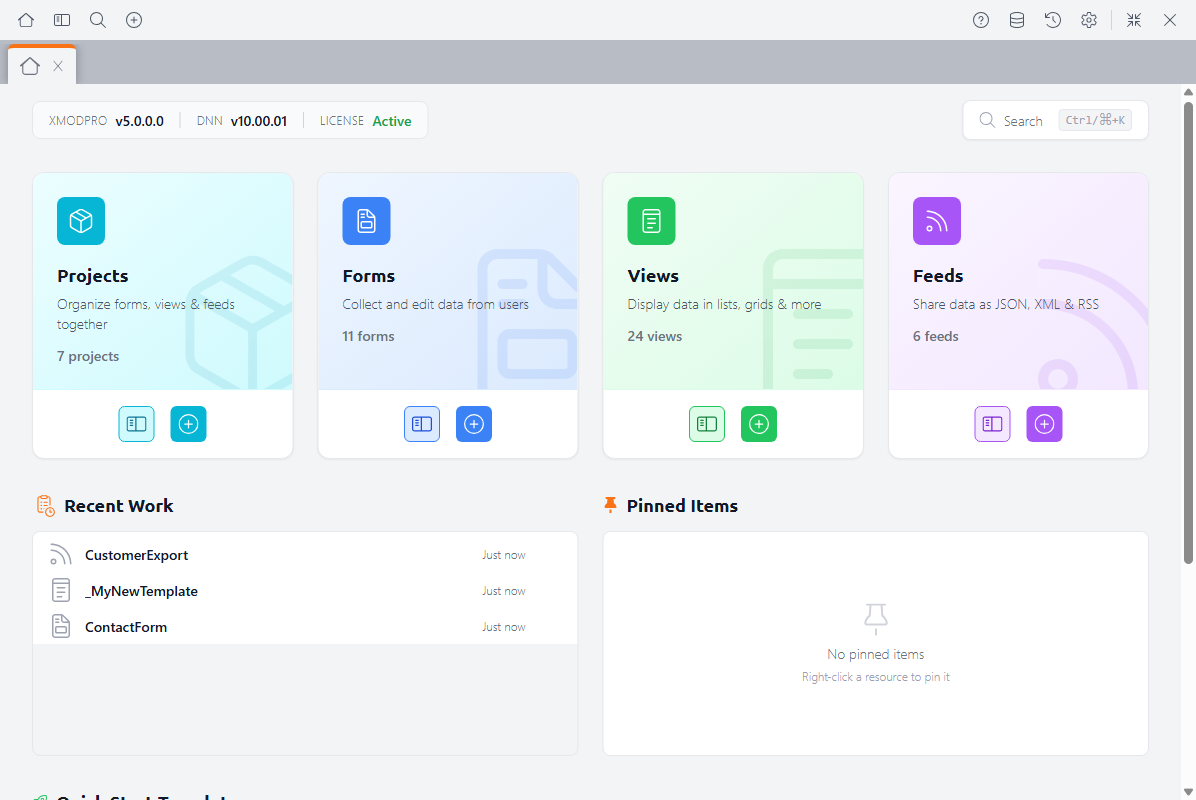
In v5, the Control Panel has been completely redesigned. It now uses a tab-based layout similar to a code editor like VS Code — you can have multiple resources open at once, switch between them instantly, and pick up right where you left off. Your open tabs are remembered between sessions.
Host Access Only
The Control Panel is only available to Host (SuperUser) accounts.
Accessing the Control Panel
To open the Control Panel:
- Log in as a Host (SuperUser) account
- Navigate to any page that has an XMod Pro module
- Enter Edit Mode by clicking the pencil icon at the bottom of the DNN Persona Bar (the sidebar on the left)
- Select Control Panel from the module's action menu
The Toolbar
The toolbar runs across the top of the Control Panel and gives you quick access to every major feature.

From left to right:
- Home — Return to the Dashboard
- Explorer — Toggle the Explorer sidebar to browse your resources
- Command Palette — Search for any resource by name (also available with Ctrl+K / Cmd+K)
- New — Create a new form, view, feed, or project
- Help — Open the built-in help viewer with searchable documentation
- Database Tools — Open Database Tools to create and manage tables
- Watchdog — Open the Watchdog security audit to scan your forms, views, and feeds for risky patterns
- Version History — Open Version History to browse and restore previous versions
- Settings — Open global settings (theme, editor preferences, snippets)
- Fullscreen — Expand the Control Panel to fill the browser window
- Exit Fullscreen — Restore the Control Panel to its normal size (replaces the Fullscreen icon while in fullscreen mode)
- Exit — Close the Control Panel and return to your DNN page
The Active Resource Indicator
When you have a form, view, feed, or project open, its name appears in the center of the toolbar — color-coded by resource type and prefixed with the matching icon. This is a quick visual reminder of what you're currently editing, no matter which tab is in focus.

Click the name to rename the resource right from the toolbar — no need to open the Explorer's context menu. Press Enter to save the new name, or Escape to cancel.
A New badge appears next to the name when the resource hasn't been saved yet. Once you save, the badge disappears.
The Dashboard
The Dashboard is your home screen — the first thing you see when you open the Control Panel. It's designed to get you to what you need quickly.
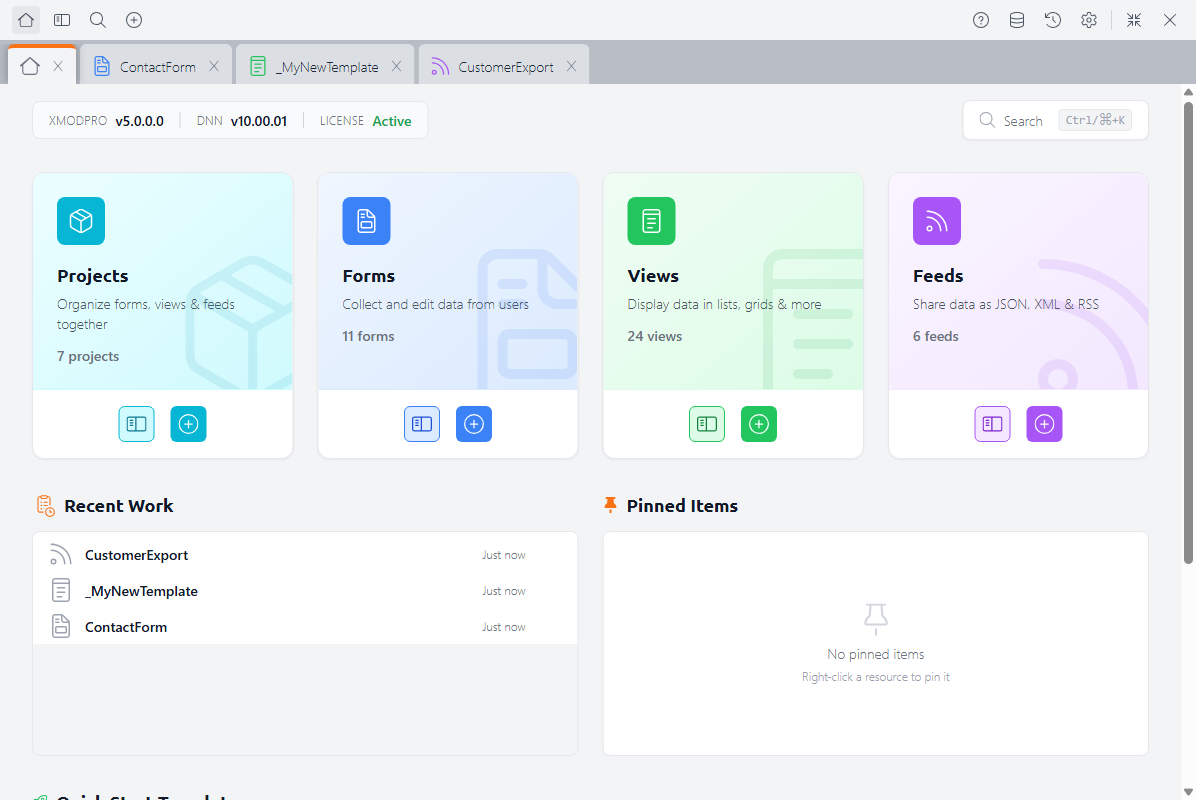
At the top, you'll see resource cards for Forms, Views, Feeds, and Projects. Each card shows a count and offers buttons to browse or create new resources.
Below that, two columns show:
- Recent Work — Resources you've opened recently, with timestamps. Click any item to open it immediately.
- Pinned Items — Your favorite resources, pinned for quick access. Pin a resource from its context menu in the Explorer.
The Dashboard also provides quick access to the View Quick Start wizard, which can generate a complete view from a data source in seconds.
The Explorer
The Explorer is a slide-out sidebar where you browse, search, and manage all your resources. Click the Explorer button in the toolbar to open it.
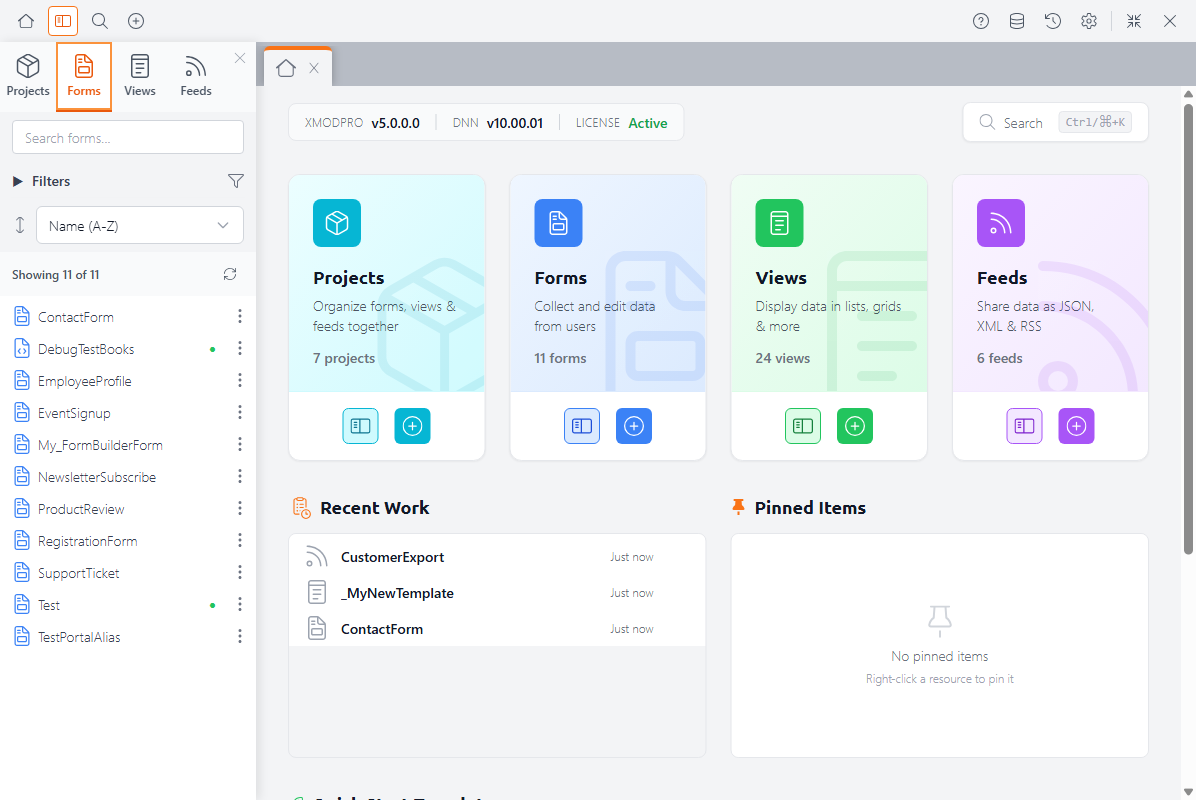
It's organized into four tabs:
- Forms — Your form definitions
- Views — Your view definitions
- Feeds — Your feed definitions
- Projects — Your project containers
Each tab includes:
- Search — Filter resources by name
- Filters — Narrow by scope (Portal / Global), type (Form Builder / Custom), or usage (In Use / Unused)
- Sorting — Sort by name, creation date, or last modified date
- Context menu — Right-click any resource for options like Open, Rename, Duplicate, Delete, Pin, and View Usage
For full details, see The Explorer.
Editor Tabs
When you open a resource, it appears as a tab — just like browser tabs or tabs in a code editor. You can have as many tabs open as you need and switch between them without losing your place.
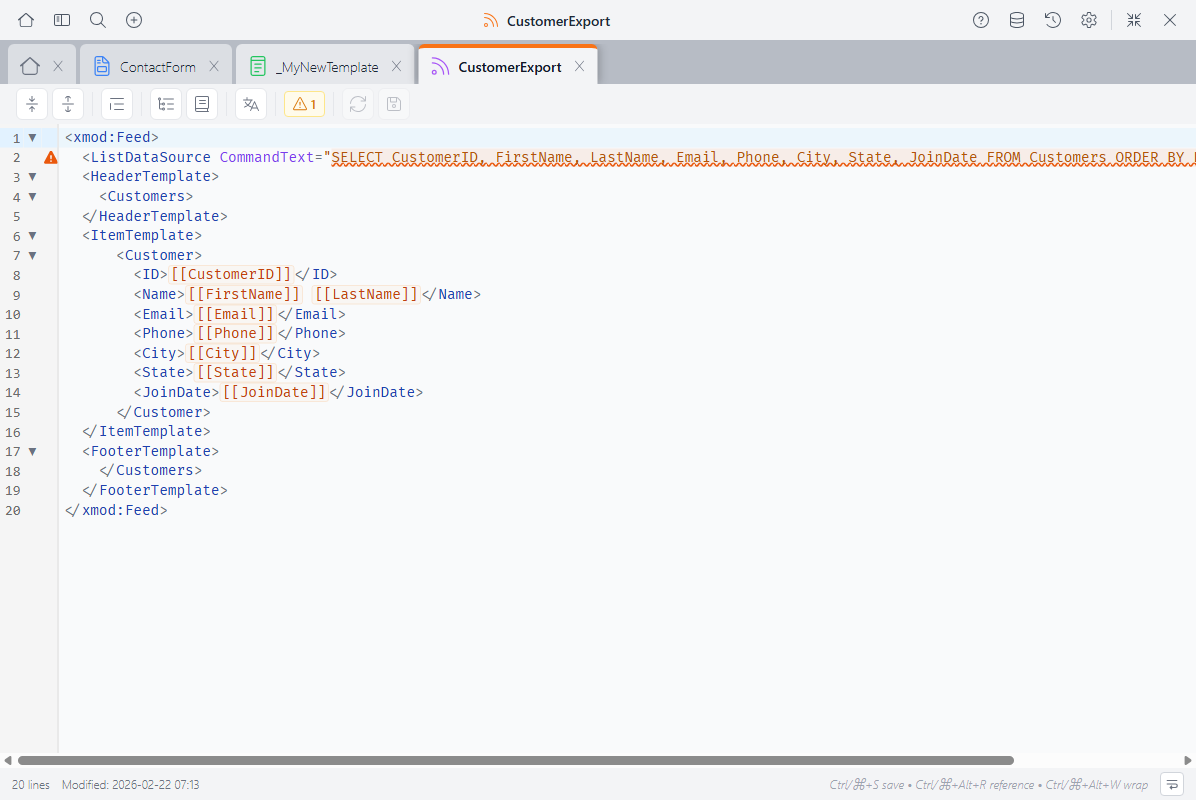
Tabs are color-coded by resource type so you can tell them apart at a glance:
| Color | Resource Type |
|---|---|
| Blue | Forms |
| Green | Views |
| Purple | Feeds |
| Cyan | Projects |
Each tab shows a dirty indicator (a dot) when it has unsaved changes. You can:
- Drag tabs to reorder them
- Right-click a tab to close it, close other tabs, or close all saved tabs
- Close with the X button on each tab
Your open tabs are saved between sessions — when you come back to the Control Panel, the same tabs will be open and ready.
Command Palette
Press Ctrl+K (or Cmd+K on Mac) to open the Command Palette — a quick search that lets you find and open any resource by name without touching the Explorer. Just start typing, and results appear instantly.
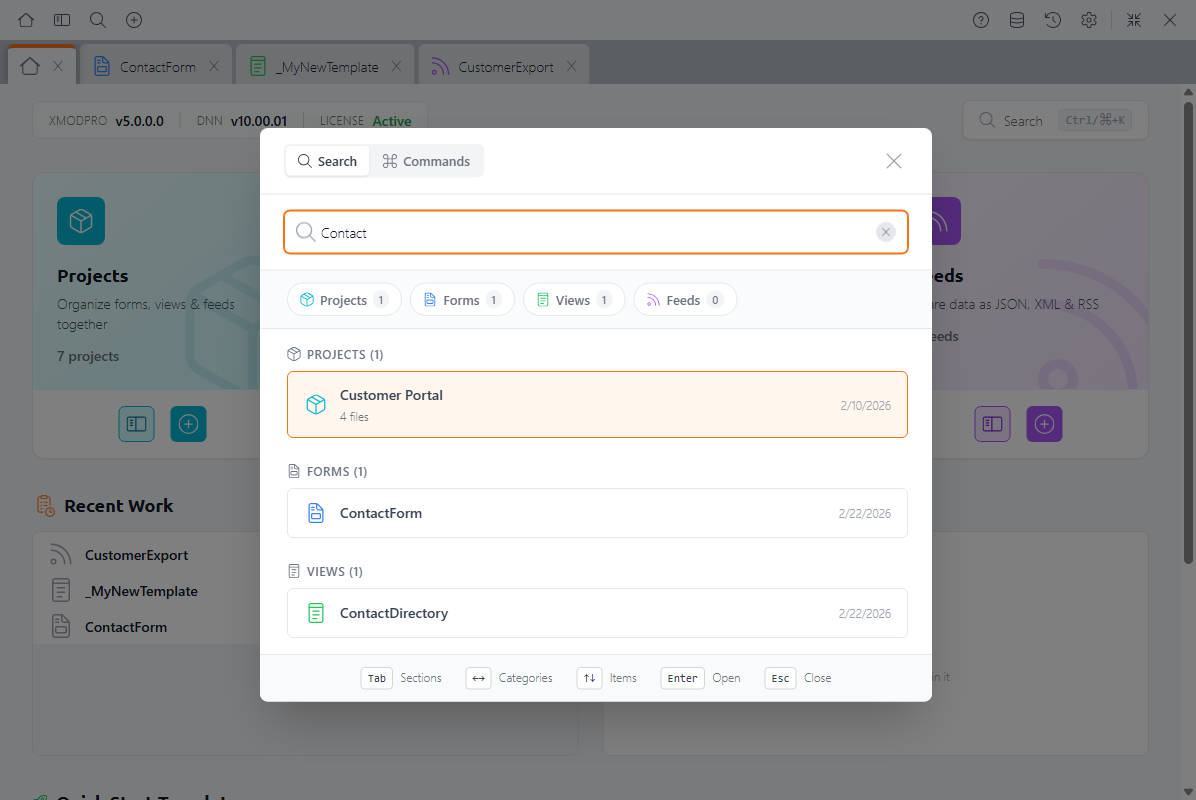
Results are grouped by type — Projects, Forms, Views, and Feeds — with counts showing how many matches were found in each category. Use the Tab key to move between sections, the arrow keys to navigate items, and Enter to open the selected resource.
This is the fastest way to jump to a specific form, view, or feed when you know its name.
Settings
Click the gear icon in the toolbar to open the Global Settings dialog.
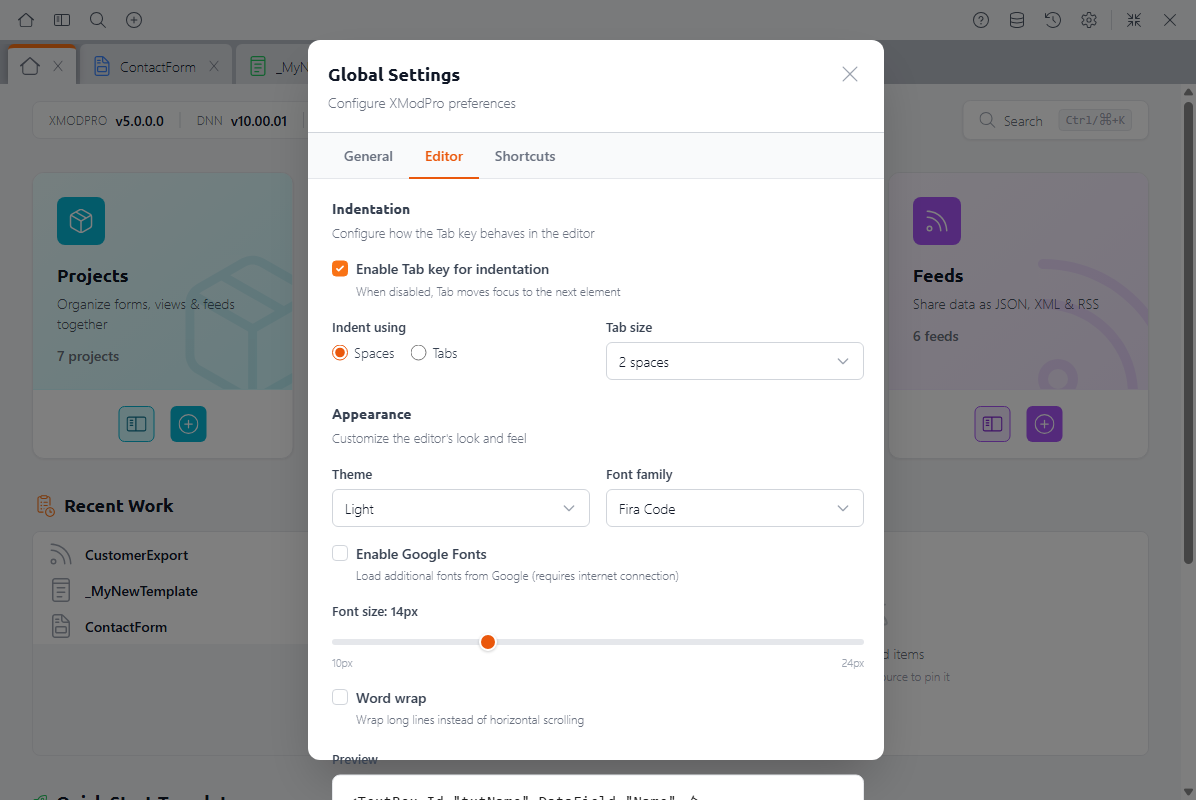
Settings are organized into three tabs:
- General — Configure Version History options: enable/disable automatic versioning, keep original backups, set max versions per resource, and auto-delete old versions
- Editor — Customize the code editor's look and behavior: indentation (tabs or spaces), theme (light or dark), font family and size, word wrap, and Google Fonts support
- Shortcuts — View and customize keyboard shortcuts
These settings apply everywhere in the Control Panel, including the code editors.
Keyboard Shortcuts
| Shortcut | Action |
|---|---|
| Ctrl+K / Cmd+K | Open Command Palette |
| Ctrl+S / Cmd+S | Save the current resource (in the editor) |
| Escape | Close dialogs and menus |
Next Steps
- The Explorer — Browse and manage your resources in detail
- Code Editors — The built-in editors for views, feeds, and custom forms
- Database Tools — Create and manage database tables
- Version History — Browse, compare, and restore previous versions
- Forms — Learn about XMod Pro forms
- Views — Learn about XMod Pro views
- Feeds — Learn about XMod Pro feeds