Version History v5.0
XMod Pro v5 automatically tracks every version of your forms, views, and feeds. Every time you save, a snapshot is captured — so you can always look back at what changed, compare two versions side by side, or restore a previous version if something goes wrong.
This means you can experiment freely. Try a new layout, rework a data source, or restructure a form — knowing that your previous work is always just a few clicks away.
Host Access Only
Version History is only available to Host (SuperUser) accounts.
Opening Version History
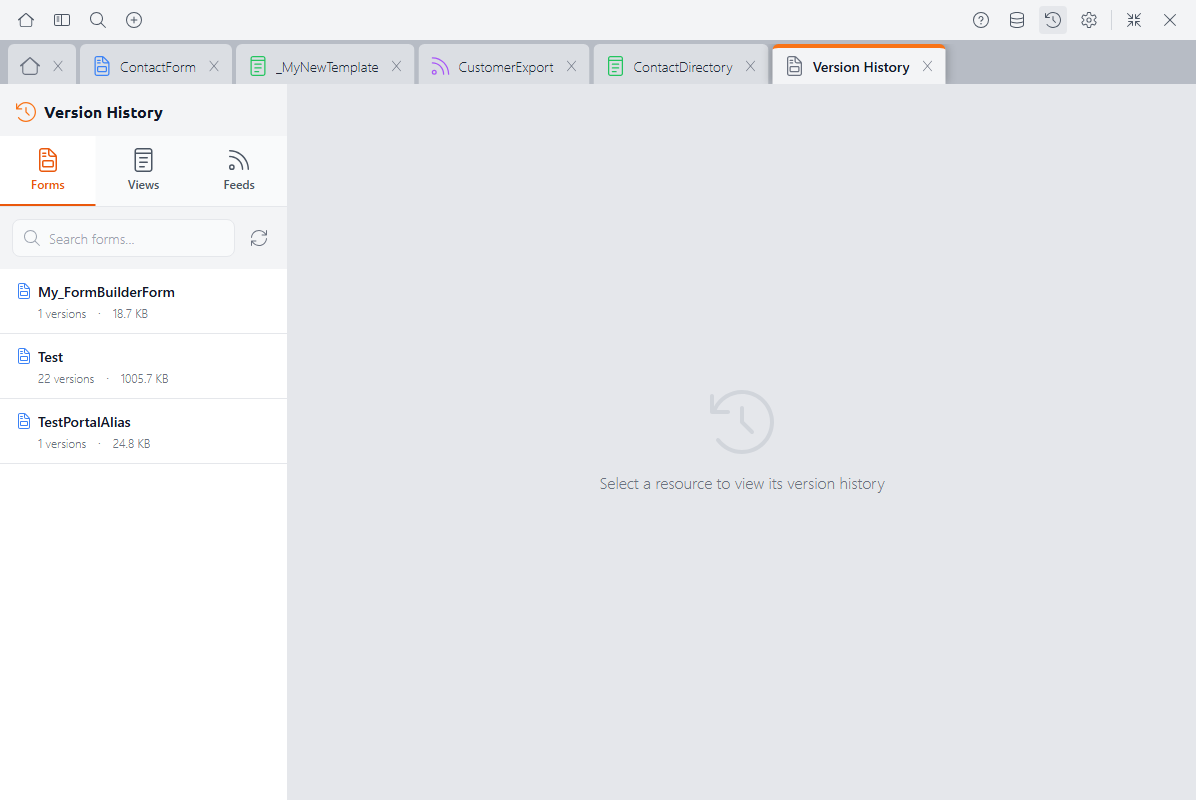
You can open Version History from the clock icon in the Control Panel toolbar. This opens a dedicated panel with two sections:
- Resource list (left) — All forms, views, and feeds that have saved versions
- Version timeline (right) — The history for the selected resource
The Version Timeline
When you select a resource, its version timeline appears on the right. Versions are listed in reverse chronological order (newest first), and each entry shows:
- Timestamp — When the version was saved
- User — Who saved it
- Comment — An optional description of the change (added automatically for certain actions like restores)
- File changes — Which files were added, modified, or removed in that version
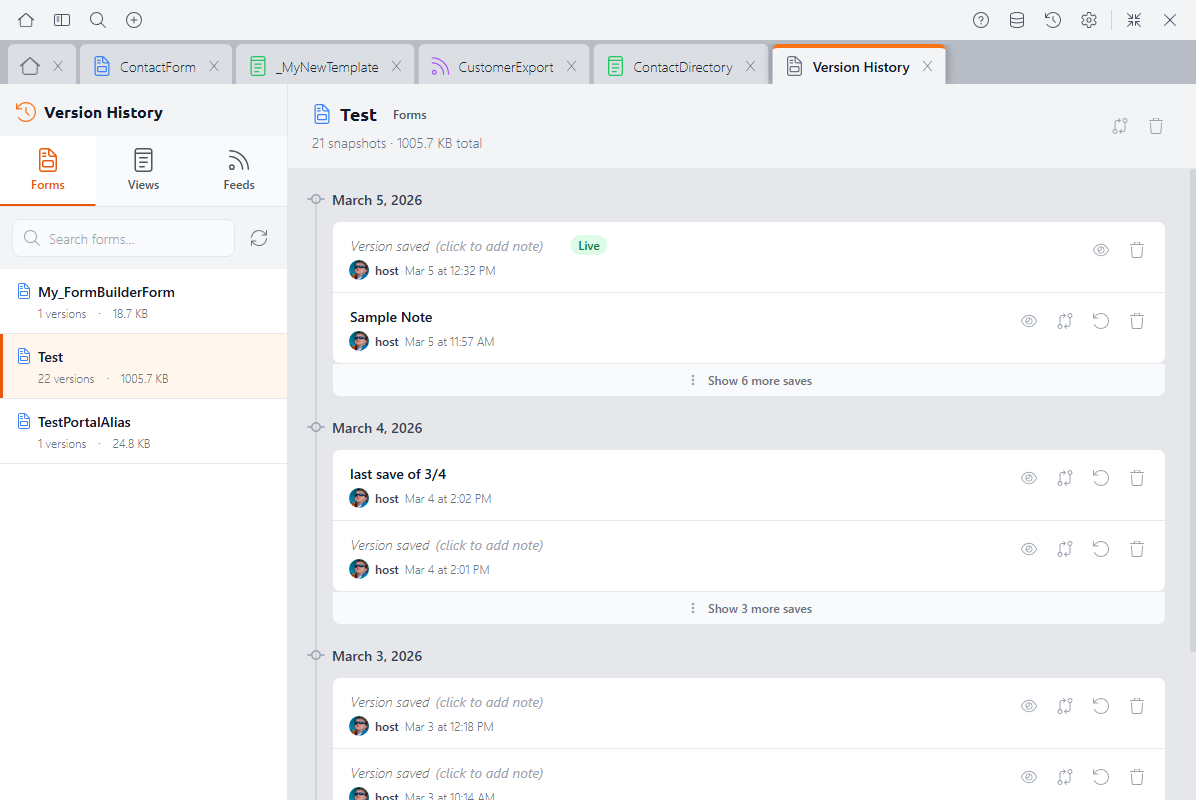
Two special entries may appear in the timeline:
- Live (green dot) — The current, active version of the resource. This is what's running on your site right now.
- Original (amber badge) — A pristine copy of the resource as it existed when it was first loaded into v5. Think of it as a factory reset point.
Comparing Versions
One of the most powerful features of Version History is the ability to compare any two versions side by side. Select a version and click Compare to see exactly what changed.
XMod Pro uses different comparison views depending on the resource type, so you always get the clearest picture of what's different.
Semantic Diff (Forms)
For forms built with the Form Builder, XMod Pro shows a semantic diff — a human-readable summary of structural changes rather than a raw code comparison. This tells you what actually changed in terms you can understand:
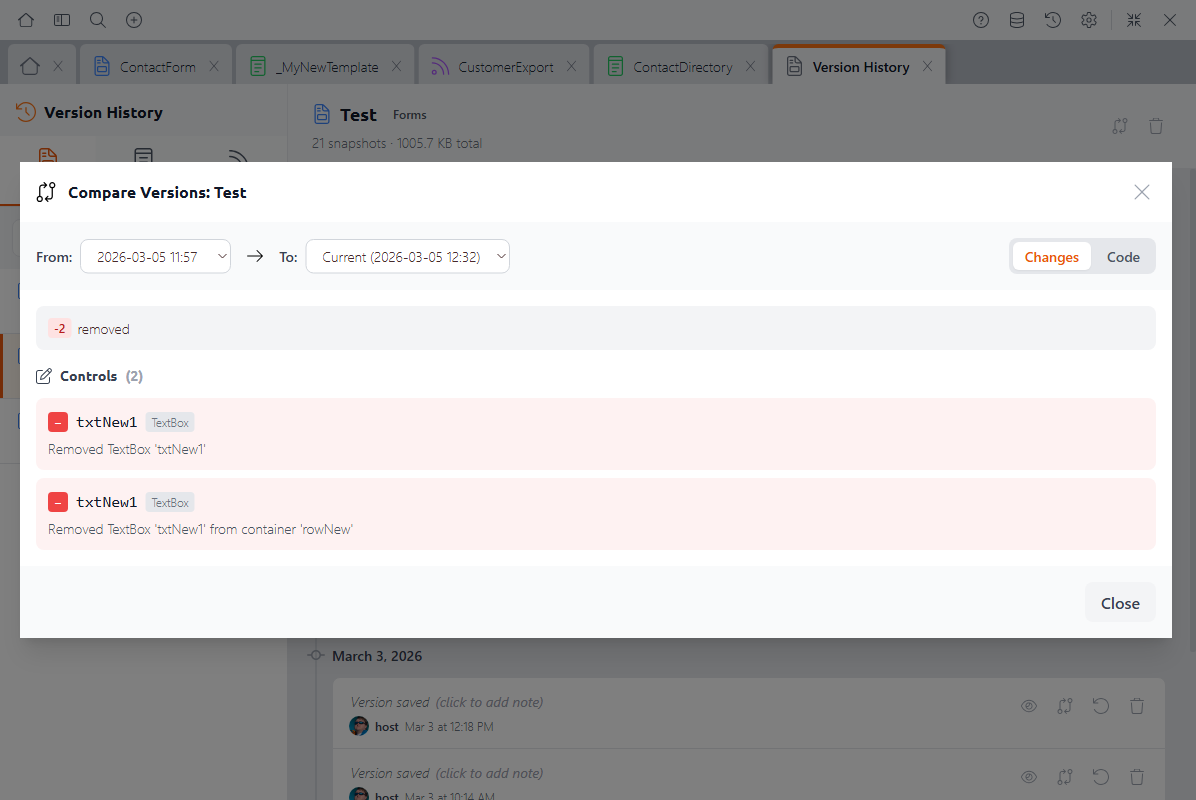
- Controls added or removed — Listed by name and type
- Properties changed — Shows the before and after values for each changed property
- Controls moved — Indicates when a control's position changed within the form
- Data source changes — Highlights modifications to the form's data source configuration
A summary at the top shows the totals: how many controls were added, removed, changed, or moved.
Code Diff (Views and Feeds)
For views, feeds, and custom forms, the comparison shows a side-by-side code diff with syntax highlighting:
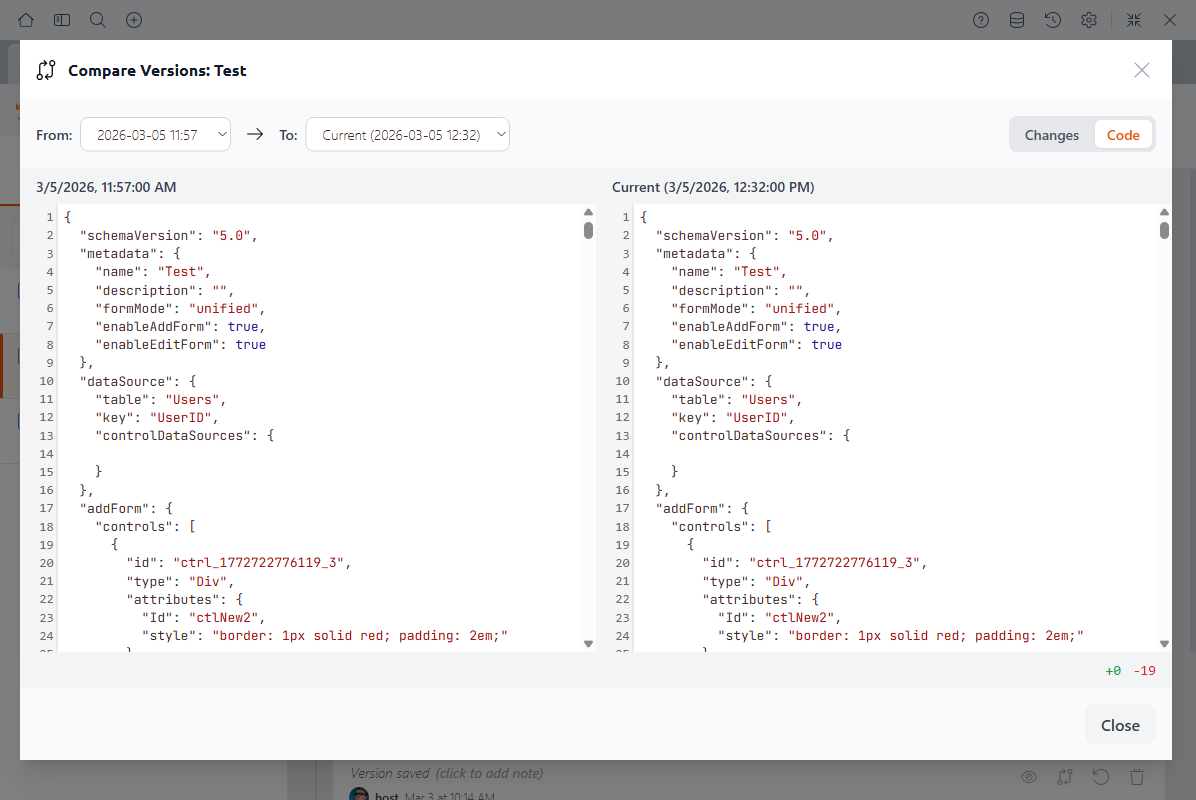
- Removed lines highlighted in red on the left
- Added lines highlighted in green on the right
- Synchronized scrolling so both sides stay aligned
- Diff summary showing total lines added and removed
Localization Diff
If a resource has translations, a Localization tab shows changes to localization strings in a table format:
- Changes grouped by language/culture
- Each key listed with its old and new values
- Summary of keys added, removed, and changed
Restoring a Previous Version
To go back to an earlier version, select it in the timeline and click Restore. Before the restore happens, XMod Pro automatically saves a snapshot of your current version — so you never lose work, even when rolling back.
You'll be prompted to add a comment describing why you're restoring (a default message is filled in automatically). After the restore completes, the timeline updates to show both the backup snapshot and the newly restored version.
Safe by Design
Restoring a version is always non-destructive. Your current work is automatically backed up before the restore, so you can always get back to where you were.
Reverting to Original
If a resource has an Original backup (the version captured when it was first loaded into v5), you can revert all the way back to that starting point. This is available from the resource's context menu in the Explorer as well as from the Version History panel.
Reverting to original removes all intermediate version history and resets the resource to its original state.
WARNING
Unlike a normal restore, reverting to original clears the version history for that resource. Make sure this is what you want before proceeding.
Deleting Versions
To free up space, you can delete individual version snapshots from the timeline. The Original backup cannot be deleted.
Next Steps
- Control Panel — Overview of the XMod Pro Control Panel
- Code Editors — The built-in editors for views, feeds, and custom forms
- The Explorer — Browse and manage your resources