Explorer: Projects Tab v5.0
The Projects tab in the Explorer lists your projects — organizational containers that group related views, forms, and feeds together.
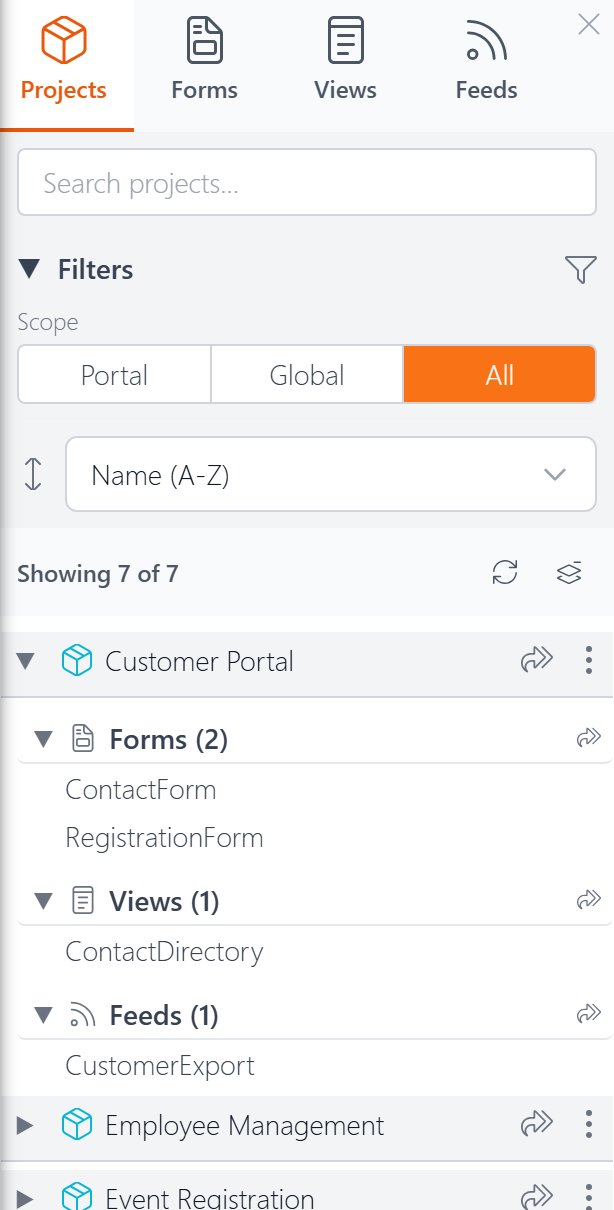
Search
Type in the search box to instantly filter the list by name. The count below updates to show how many projects match.
Filters
The Projects tab has one filter group:
Scope — Filter by where the project is stored:
- Portal — Projects belonging to the current DNN portal
- Global — Projects shared across all portals
- All — Show all
You can collapse the Filters section by clicking its heading.
Sorting
A dropdown below the filters lets you sort the list:
- Name (A–Z) — Alphabetical order (default)
- Modified (Newest) — Most recently edited first
- Created (Newest) — Most recently created first
Expanding Projects
Click the arrow next to a project name to expand it and see its contents. Forms, views, and feeds are grouped into collapsible sections with counts (e.g., "Forms (2)"). Use the collapse/expand all button next to the item count to toggle all projects open or closed at once.
Opening Resources
You can click any resource name within an expanded project (like "ContactForm" or "ContactDirectory") to open it in its editor. The Projects tab also has Open All buttons at two levels:
- The Open All button on a project row (e.g., next to "Customer Portal") opens every resource in that project — all its forms, views, and feeds — as editor tabs.
- The Open All button on a resource type row (e.g., next to "Forms (2)") opens just the resources of that type within the project.
This is handy when you want to work on an entire project or a group of its resources without clicking each one individually.
Actions Menu
Click the three-dot menu (⋮) on any project to see the available actions:
- Pin / Unpin — Pin the project to the top of the list for quick access. Pins persist across sessions.
- Duplicate — Create a copy of the project with a new name
- Delete — Permanently remove the project. See Deleting a Project for details on how XMod Pro handles the resources inside it.
Next Steps
- The Explorer — Overview of the Explorer panel
- Projects — What projects are and how they work