Activating Your XMod Pro License
Shows you the steps to take to quickly get your XMod Pro module activated and functional.
 by Melinda (DNNDev) ·
May 13, 2013
by Melinda (DNNDev) ·
May 13, 2013
Localhost Implementation
Note: If you are installing XMod Pro on localhost, for development purposes, there is no need to activate. The module is fully functional for development purposes when run under localhost.
XMod Pro License Activation Process
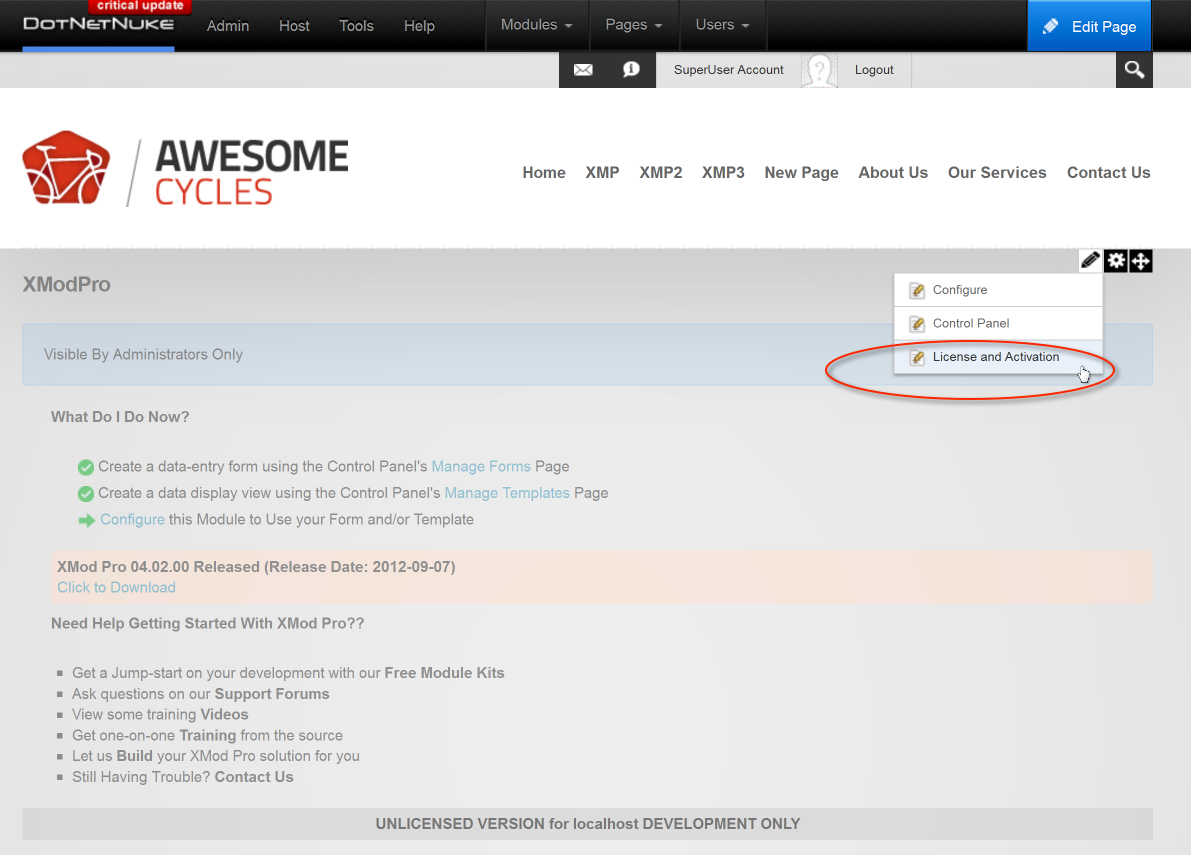
DNN 7.x, 8.x, and 9.x: Select License and Activation - from the module Edit dropdown list
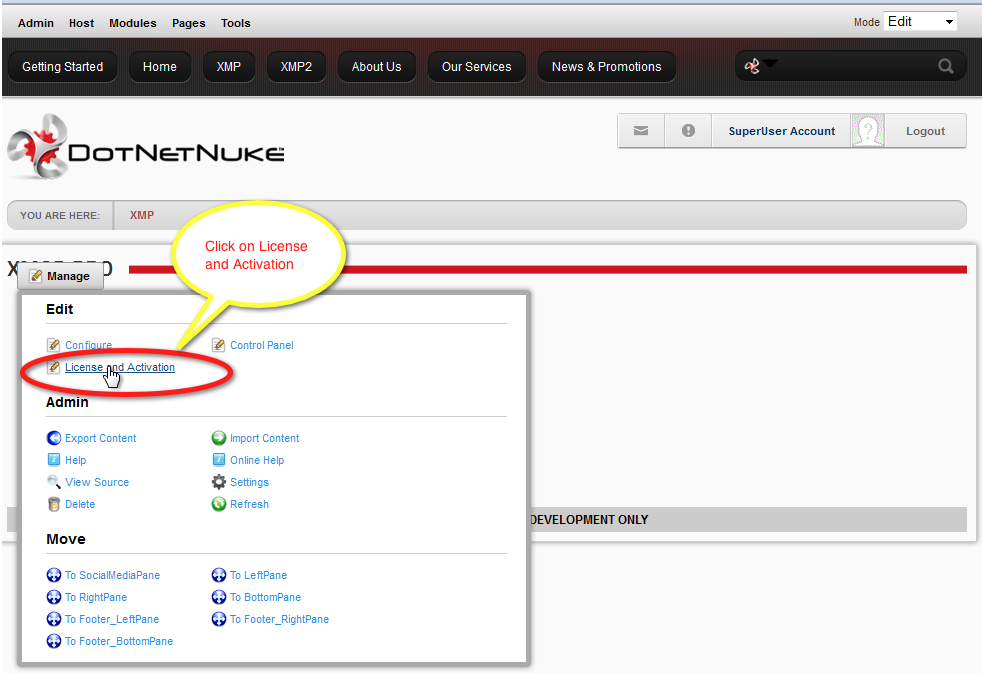
DNN 6: Select License and Activation - from the "Manage Menu" (also known as the "Actions Menu" in DNN 5)
- This will bring up the License and Activation page :
DNN 7.x, 8.x, and 9 License and Activation Page:
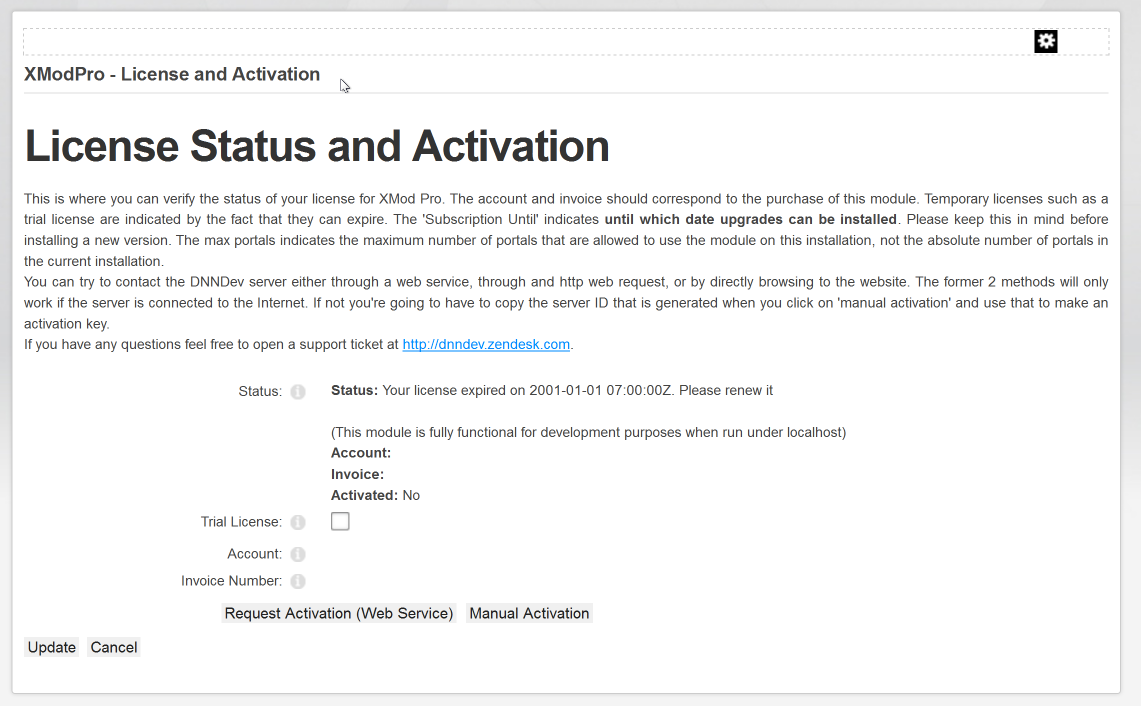
DNN 6 License and Activation Page:
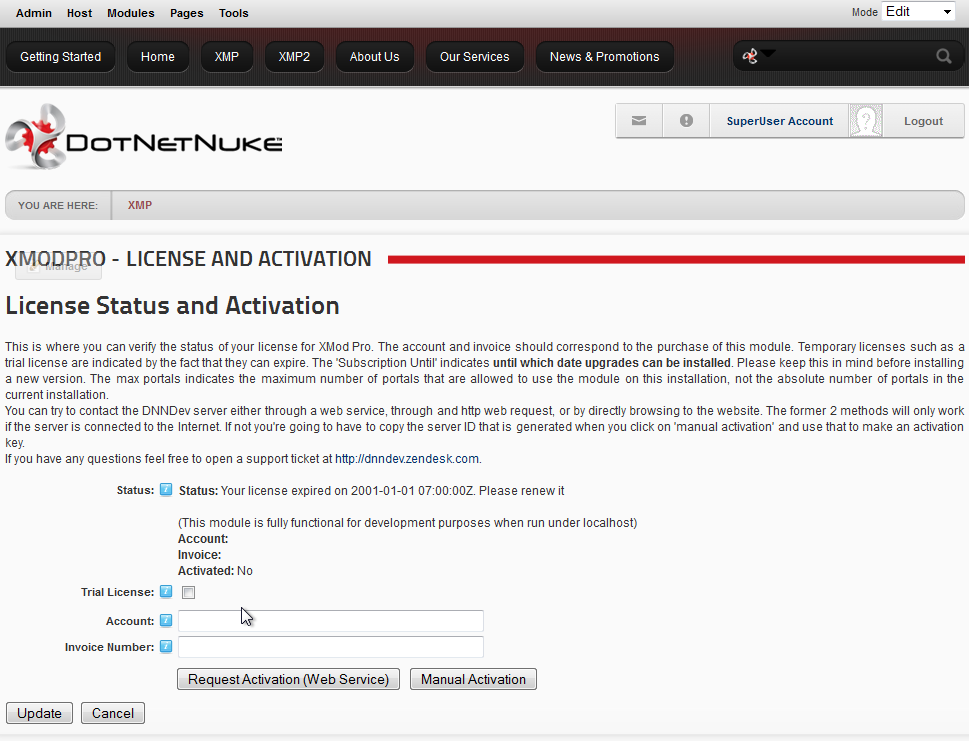
License Status and Activation Page
The following steps are the same for DNN 7, 6, and 5x:
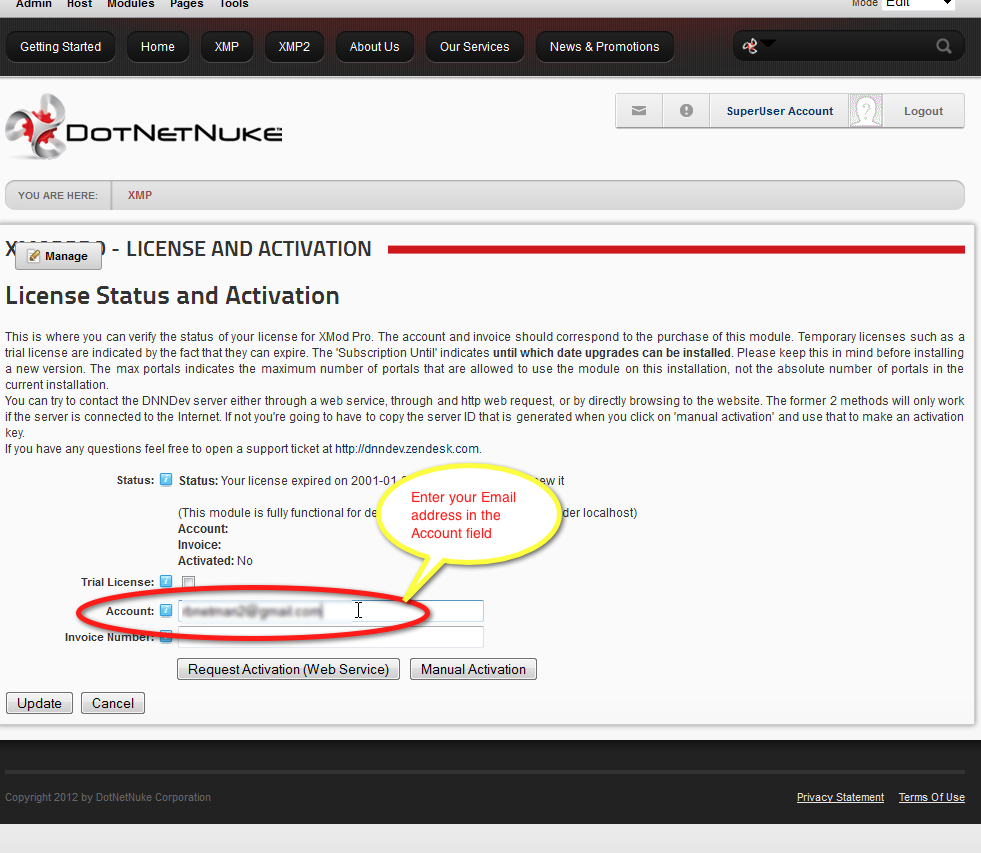
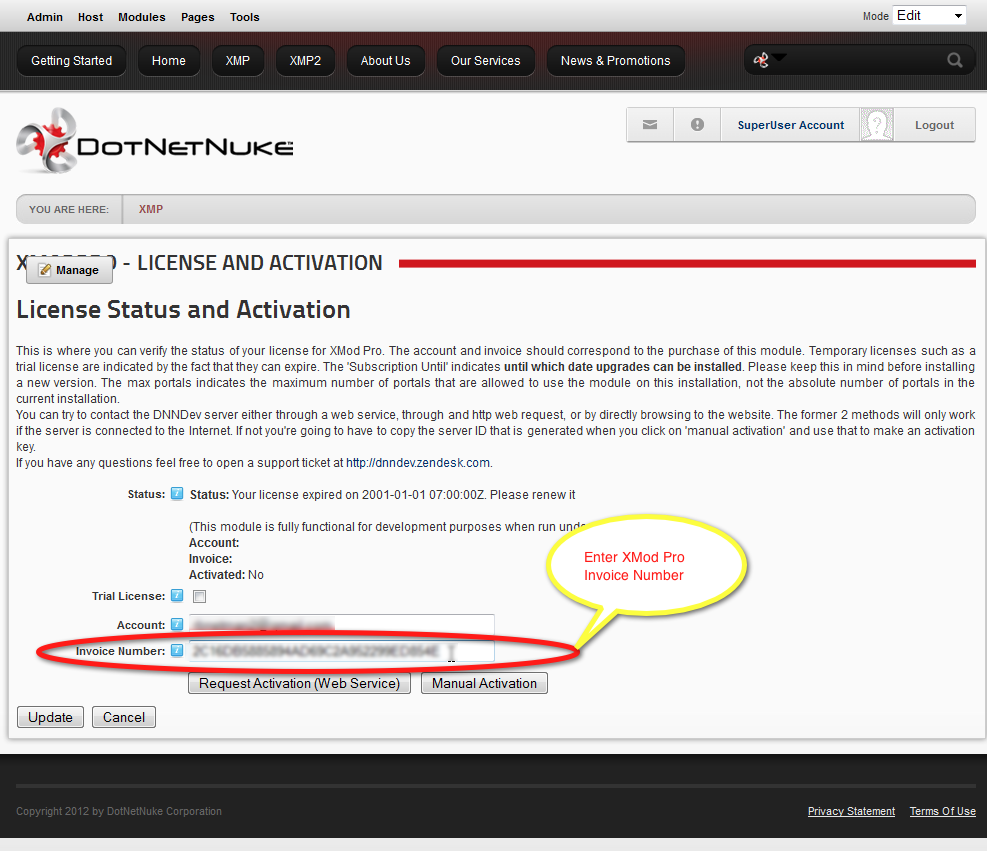
- In the Invoice Number textbox, enter the license invoice number associated with your purchase.
- Click the Request Activation (Web Service) button:
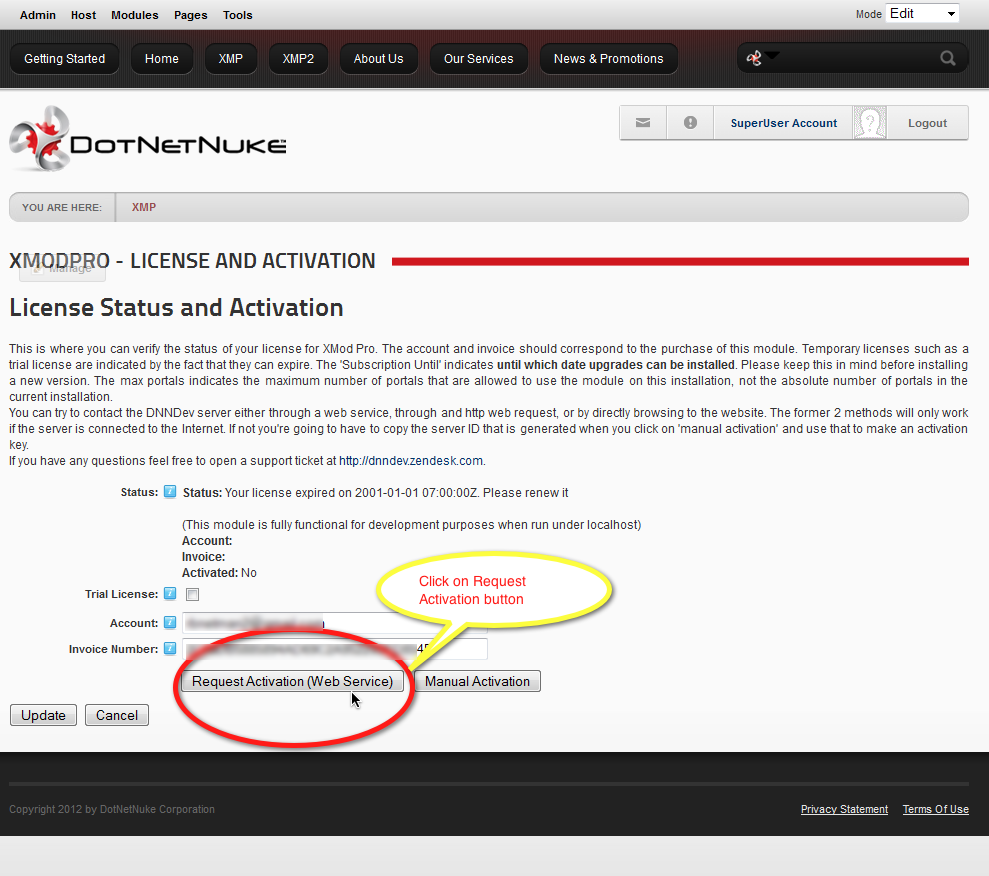
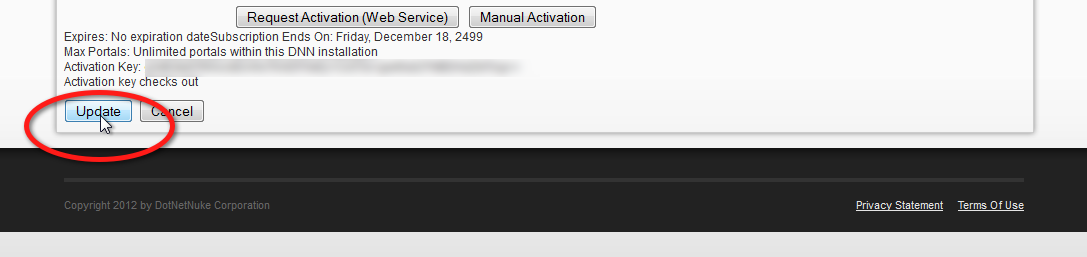
This will then go to our servers and verify your activation. A message should be displayed underneath the request activation button that says something to the effect of "activation key checks out" along with some other data.
- Click the Update button to save the activation information to your site.